Short answer
To switch CRM without losing data, list what must move, export it to files or connect the old system, map every old field to a new one, run a dry run that writes nothing, import for real and check the totals against the old system. Keep a rollback ready and the old CRM readable until the check passes.
- Steps: six
- Before the real import: a dry run
- You need: an export or access to the old CRM
On this page
- Short answer
- Why data gets lost
- The 6-step method
- The migration checklist
- From spreadsheets to a CRM
- Which systems Krokul reads
- Mapping fields
- The dry run
- Rolling back an import
- External IDs
- From Pipedrive
- From HubSpot
- From Zoho CRM
- From KeyCRM, KeepinCRM, SalesDrive
- From ClickUp
- Exporting your data
- Setting up on day one
- Your team or a partner
- Common mistakes
- Where to start
- FAQ
Why data gets lost when a company switches CRM#
Data gets lost in a CRM move at three points. The export leaves out a table nobody listed, such as tasks or product references. The mapping sends two old fields into one new field, and one of them is overwritten. Or the import runs once on the whole database, and nobody can undo it when the totals do not match.
Each point has a fix, and the six steps below put the fixes in the order a sales operations manager or an administrator meets them: audit, export or connection, mapping, dry run, import, check. The sections after the method go deeper on each source system and each question.
- Data migration
- Data migration is the transfer of contacts, client companies, deals, products and tasks from one system to another, with every record keeping its links to the others.
- Field mapping
- Field mapping is the table that says which field of the old system fills which field of the new one, and which old fields are left behind.
- Dry run
- A dry run is a trial import that reads the source and applies the mapping but writes nothing, then reports how many records would be created, updated and skipped.
- Rollback
- A rollback removes the records that one import created, so the database returns to its state before that import.
- External ID
- An external ID is the code a record had in the old system, stored next to the new record so a repeated import updates it instead of duplicating it.
The 6-step method for switching CRM safely#
Krokul CRM is a B2B CRM for contract-based companies: deals, projects and profit per client in one system, implemented by integration partners. The method works with any CRM, and the steps below name the Krokul Migration screen where one exists. Data migration in Krokul is run by an administrator.
Audit what has to move
List every kind of record in the old system: client companies, contacts, deals with their stages, products, tasks and anything custom. Mark each as move, archive or leave behind, and write down how many records of each kind exist, because these counts are the totals you check against at the end.
Decide the cut-off date. Records closed three years ago can be archived as a file, while open deals and active clients move in full.
Export the data or connect the old system
Choose one route per source. A spreadsheet or a system without a ready connector goes in as files, one kind of record per file. A system with an API goes in through an access key that only needs read rights.
In Krokul, the Migration screen offers a file in CSV, TSV or XLSX format, a Google Sheet by link, or an API connection to Pipedrive, HubSpot, Zoho CRM, ClickUp, KeyCRM, KeepinCRM and SalesDrive. The server reads the access key, and the screen does not show it again after the connection check.
Tip. Create the access key with read rights only. The hints on the screen for HubSpot, Zoho CRM and SalesDrive ask for exactly that.
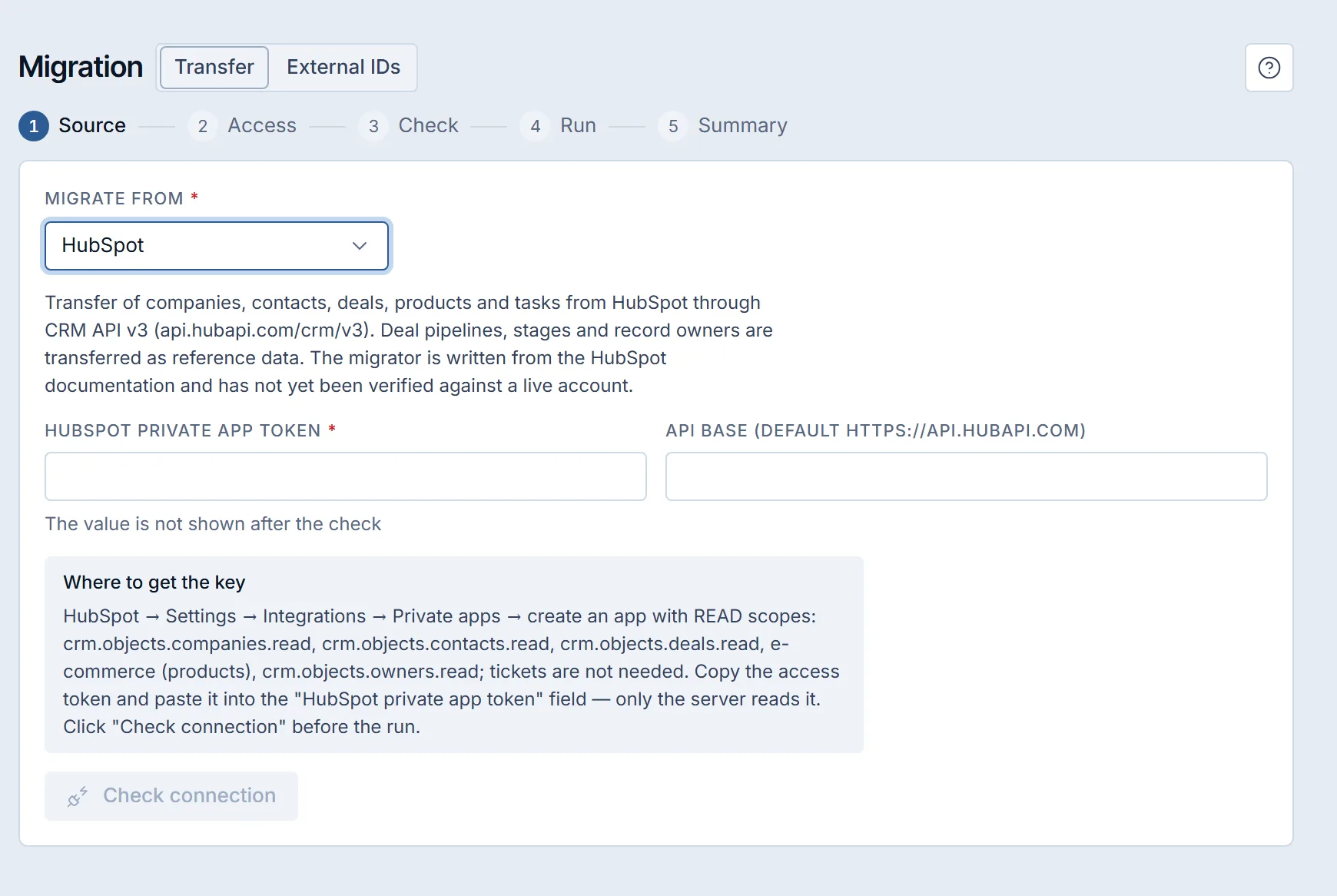
Connecting an old CRM in a Krokul demo workspace: the key field, the hint and the connection check. Map every old field to a new field
Build the mapping before any record moves: one row per old field, with the new field it fills or the decision to leave it behind. Two old fields that fill one new field need a rule, such as joining them or keeping the first non-empty value.
Krokul proposes a mapping from the column names of the file and highlights the required fields. The start button stays disabled until every required field has a column, and the finished mapping can be saved as a profile for the next file of the same shape.
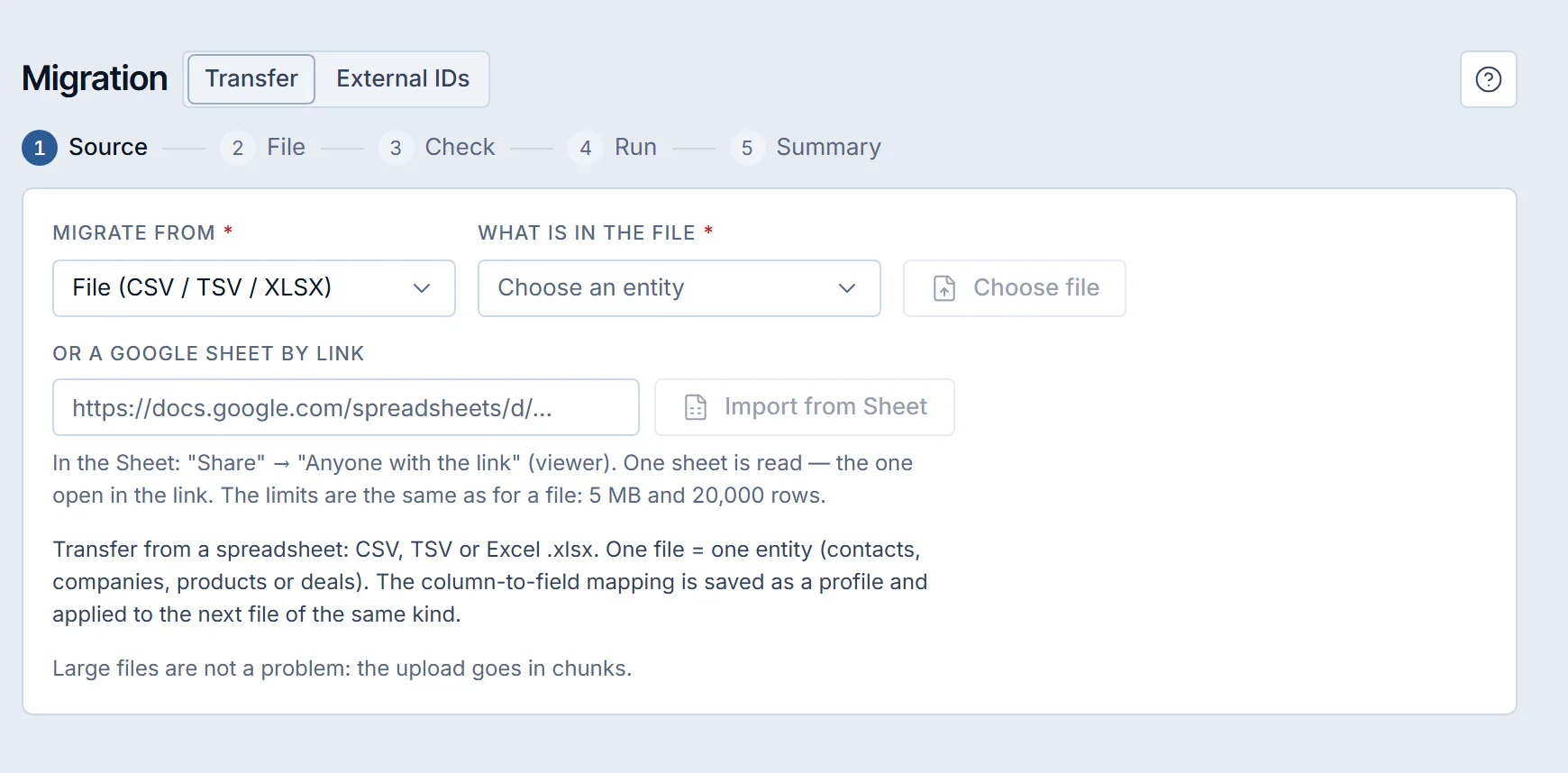
The Migration screen in a Krokul demo workspace: the source, the kind of record in the file and the Google Sheet field. Run a dry run and read the report
Run the whole import once without writing anything and read the report line by line. The report counts the records that would be created, updated and skipped for each kind of record, and lists each row that would fail with its reason. A reason that repeats hundreds of times points to a mapping error in your setup.
In Krokul, the dry run is a separate run on the same file or connection with the same mapping. It reports how many records would be created, updated and skipped, and the real run then uses that mapping unchanged.
Import for real in the right order
Import client companies first, then contacts, then products, then deals, and check the totals of each kind of record before the next. Run one kind at a time, so a mismatch points to one part of the data.
For a move from another CRM through its API, Krokul itself transfers companies first, then contacts and products, then deals, and links each deal to its company and contact by external ID. A deal whose company was not written arrives without the link, and the report says so. For files, each file carries one kind of record and Krokul builds no links between files, so the company name stays as text in the record and the order of the files matters only for checking totals. The import runs on the server, so you can pause and resume it or close the page and return to the summary later.
Check the totals and keep the rollback ready
Compare the counts from step 1 with the counts in the new system, then open twenty records chosen at random and compare every field with the old system. Keep the old CRM readable until this check passes and one full working week has run in the new one.
The Krokul summary of a live run lists created, updated and failed rows, and each failed row appears as a row number with a reason. The dry run report counts the skipped rows. If a run landed wrong, the rollback removes what that run created.
What a CRM migration checklist should cover#
A CRM migration checklist covers four phases, and each phase ends with a check that someone can tick. The detailed list, with the mapping profiles and the rollback conditions, is in the guide on the CRM migration checklist.
| Phase | What happens | Done when |
|---|---|---|
| Audit | Every kind of record is listed, counted and marked move, archive or leave | A table of record counts exists and the owner has signed it off |
| Mapping | Every old field gets a new field or a decision to leave it | No required field in the new CRM is without a source |
| Dry run | The import runs without writing and the report is read | Failing rows are explained, the skipped count is understood and the mapping is fixed |
| Import and check | Records move in order and the totals are compared | The counts match and twenty sample records are identical |
How to move from spreadsheets to a CRM#
Moving from spreadsheets to a CRM means turning rows into linked records. One spreadsheet becomes one kind of record, and the files are independent, because Krokul builds no links between them. The guide on moving from spreadsheets to a CRM walks through the clean-up and the template.
- Give every file a header row and one kind of record: client companies, contacts, products or deals.
- Clean the obvious duplicates in the sheet first. Two rows for one company become two records.
- Split any column that holds two values, such as “John, Mary” in one contact cell.
- Import in this order: client companies, contacts, products, deals. The order helps you check totals, and the company name in a contact or deal file stays as text.
Krokul reads CSV, TSV and XLSX files, or one sheet of a Google Sheet shared as “Anyone with the link”. A file may hold up to 5 MB and 20,000 rows, and a larger file is split into parts. Contacts, client companies, products and deals come in from a file, while tasks and history do not. The Migration screen in Krokul keeps the mapping of a file as a profile, so the next file of the same shape starts with it.
Which systems can Krokul read when you switch CRM#
Krokul reads eight sources: files and seven systems through their APIs. Each source has its own list of records it can read and a few things it leaves behind, and the table shows both. Email threads, call logs and recordings, and attachments are not transferred from any source, so export them from the old system before you switch it off. Activities and comments move only where the table says so.
| Source | What Krokul reads | What stays behind |
|---|---|---|
| File (CSV, TSV, XLSX) or Google Sheet | Client companies, contacts, products, deals; one kind of record per file | Tasks and history |
| Pipedrive | Organizations, persons, deals, products, activities as tasks; pipelines, stages and users | Email threads, call logs and recordings |
| HubSpot | Companies, contacts, deals, products, tasks; pipelines, stages and owners | Deal line items, email threads, call logs and recordings |
| Zoho CRM | Accounts, contacts, deals, products, tasks; deal stages and users | Extra pipelines (one is read), calls, meetings, notes |
| ClickUp | Deals, contacts, companies, tasks with subtasks and checklists, comments as feed events (up to 50 per task) | Products (use a file) |
| KeyCRM | Companies, buyers, products, pipeline cards | Email threads, call logs and recordings |
| KeepinCRM | Counterparties, deals, tasks, products; pipelines, stages and users | Email threads, call logs and recordings |
| SalesDrive | Orders (inquiries) | Every other kind of record |
The source list in the product comes from the system itself, so check the Migration screen for the sources available in your workspace before you plan the move. Some connections were built from the source’s documentation and have not yet been checked against a live account, so a dry run on your own data is a required step. SalesDrive order fields are read tolerantly, and the ClickUp company records have not been checked on a live workspace.
How to map fields between the old CRM and the new one#
Mapping fields means deciding, for every old field, where its value goes or that it is left behind. Make the decision on paper before the import, because a mapping error repeats on every record. The checklist guide, CRM migration checklist, has the full mapping template.
| Old field | New field | Decision |
|---|---|---|
| Company | Client company | Required; the same company in two rows must have the same name |
| Contact name and email | Contact | Required; the email is also used to catch duplicates |
| Stage “Proposal sent” | A stage of the sales pipeline | Create or choose the stage before the import |
| Owner | A user of the new CRM | Match each old user to a new user in advance |
| Internal note, free text | Not imported | Archive in the file and leave behind |
When two old fields fill one new field, write the rule down: join them, or keep the first non-empty one. Fields that exist only in the old system, such as a custom “Region” field, need a custom field in the new one before the import. For an API source, the Migration screen has no step for matching pipelines, stages and users: those rules are written through the API call migration/api-setMapping.
How to run a dry run before the real import#
A dry run of a CRM import reads the whole source, applies the mapping and reports what would happen without writing a record. Read the report as a list of questions, and fix the mapping until every failing row has a reason you accept and the skipped count matches the duplicates you expect.
| Result | Rows | Reason |
|---|---|---|
| Would be created | 1,150 | New people with a phone or an email |
| Would be updated | 0 | No earlier import of this file |
| Would be skipped | 110 | Duplicates of records already in the workspace, counted only |
| Would fail | 40 | Rows without a required field, listed with the row number and the reason |
The results add up to the 1,300 rows of the file: 1,150 + 0 + 110 + 40. In the example, the 40 failing rows are listed with their reasons and point to a mapping or file problem, while the 110 skipped duplicates are only counted, so check them in the source before the real run.
In Krokul, the dry run starts from the check step as a separate run, takes the key of an API source from the previous run on the server without asking for it again and shows how many records would be created, updated and skipped, and lists the rows that would fail, with the reason. The report states that nothing was written, and the live run follows with the same mapping.
How to roll back a CRM import that landed wrong#
A rollback of a CRM import removes the records that this import created and leaves everything else alone. Decide before the import what you will do if the totals do not match, because a rollback applies to one run at a time.
- Records the import created disappear, last kind of record first.
- Records the import only updated keep their new values, so correct them by hand if needed.
- Records that someone changed after the import stay in place.
- A dry run created nothing, so there is nothing to roll back.
Krokul runs the rollback of a live import from the summary step on the server, so it can take a few minutes, and it shows “Rolled back” at the end. The rollback of one run does not touch another run, which is why importing one kind of record at a time keeps every step reversible.
How external IDs keep records linked after the move#
External IDs are the codes records carried in the old system, kept beside the new records. They let you import the same data twice without duplicates, and they let you find the new record for any old code. A mapping that loses these codes forces you to match records by name for the rest of the project.
Krokul stores each source, kind of record and external ID once per workspace, so a repeated import updates the records that already moved. A file with an external ID column works the same way. Without that column, Krokul looks for the record by a key built from all the key fields together, such as phone, email and full name, so a changed value in one of them creates a new record. The External IDs tab lists the connections of a source, finds a record by its old code and opens its card. Removing a connection deletes only the memory of the code. The record stays, and the next import with that code creates a new record.
How to migrate from Pipedrive and keep the pipeline#
Migrating from Pipedrive means reading organizations, persons, deals, products and activities through the API and mapping its pipelines and stages onto yours. The guide on migrating from Pipedrive gives the order of the steps and the checks.
Krokul reads Pipedrive through API version 2 with a personal API token. A Pipedrive activity arrives as a task, and the state of a deal (open, won or lost), which Pipedrive keeps apart from the stage, is saved in a custom field while the deal lands in the mapped stage. The connection runs at 80 requests per minute, so a large account takes longer.
How to migrate from HubSpot with contacts and deals intact#
Migrating from HubSpot means reading companies, contacts, deals, products and tasks with the associations between them. The guide on migrating from HubSpot covers the private app, the scopes and the order of the import.
Krokul reads HubSpot through a private app token with read scopes for companies, contacts, deals, products and owners. A contact arrives with its first company association, a deal keeps its pipeline and stage, and the line items of a deal stay behind because HubSpot keeps them as a separate object with its own rights.
How to migrate from Zoho CRM and map its stages#
Migrating from Zoho CRM means reading accounts, contacts, deals, products and tasks, and turning the values of the deal Stage field into pipeline stages. The guide on migrating from Zoho CRM lists the regions and the checks.
Krokul connects to Zoho CRM with a Client ID, a Client Secret and a refresh token from a Self Client, plus the region of the account: com, eu, in, com.au or jp. One pipeline is read, so a company with several pipelines in Zoho moves the others by file.
How to migrate from KeyCRM, KeepinCRM or SalesDrive#
Migrating from KeyCRM, KeepinCRM or SalesDrive uses the same method, and each system reads a different set of records. Read the guides on migrating from KeyCRM, migrating from KeepinCRM and migrating from SalesDrive for the order of the steps.
KeyCRM is read at 60 requests per minute and yields companies, buyers, products and pipeline cards. KeepinCRM yields counterparties, deals, tasks and products with their pipelines, stages and users. SalesDrive yields orders only, so contacts and products from it move by file.
How to migrate from ClickUp when everything is a task#
Migrating from ClickUp starts with a decision for every list, because ClickUp stores deals, people and companies as tasks in lists. Give each list a role, such as deals, contacts, companies, tasks or skip, and a mapping of its custom fields. The guide on migrating from ClickUp explains the list layout.
Krokul reads a ClickUp workspace with a personal API token and builds the layout of lists with you. The assistant can draft the layout from the structure of the workspace, and a person approves it before anything is imported. Subtasks, checklists, comments and assignees come along, with up to 50 comments per task. A workspace of 3,000 tasks with comments takes about 35 minutes, and without comments about 1 to 2 minutes.
How to export your CRM data whenever you need it#
Exporting CRM data means taking your records out as files you can open anywhere. Test the export of any system before you commit to it, and keep a full export of the old CRM until the new one has run for a while. The guide on exporting CRM data lists the formats.
Krokul exports a register to CSV with a semicolon separator and a byte order mark, so Excel opens Cyrillic text correctly, and a register larger than the limit is refused with a message instead of being cut short. Contacts go out as vCard, data goes to Google Sheets, and the public API v1 comes with English documentation.
How to set up a CRM in one day after the move#
Setting up a CRM after a data move means fixing the pipeline, the sources and the required fields before the team starts. The guide on setting up a CRM in one day gives the order and the checklist.
In Krokul, a business type chosen at the start adds a sales pipeline with stages, sources of inquiries, loss reasons, document templates and custom fields, and only what is missing is added, so the step can be repeated safely. Do this before the import, so the imported deals land in a pipeline that already has its stages.
Who should run the migration: your team or an implementation partner#
A company with a short customer list and a spreadsheet can run the migration itself, and a company with years of data, several pipelines and custom fields gets a safer move from an implementation partner. The partner sets up the workspace, trains the team and transfers the data of the running business. For an API source, the rules that map the old pipelines, stages and users to yours are written through the migration API call migration/api-setMapping, which a partner or an administrator makes. Without rules, deals land in the first mapped pipeline and its first stage, and without any mapping they fail with an error row.
Anyone can try Krokul and import a sample file to see the mapping and the dry run report. The question of who runs the real import depends on how much of the old data has to survive, and the data migration page lists what the product moves and what it leaves behind.
Which migration mistakes cost the most#
- Importing the whole database at once. When the totals differ, nobody knows which part is wrong; import one kind of record at a time and check each.
- Skipping the dry run. The same mapping error then repeats on every record; read a dry run report before the real import.
- Switching the old CRM off on the import day. A missing table then cannot be exported; keep the old system readable for at least a working week.
- Mapping two fields into one without a rule. One value overwrites the other; write the rule into the mapping.
- Leaving duplicates in the source. They become duplicate records; clean the obvious ones before the import and compare the skipped count of the report with what you expect.
Where to start: a decision table#
Pick the row that matches the situation you are in today and start with that guide. Each row is a day or less of preparation.
| Situation | First step | Guide |
|---|---|---|
| You do not know what has to move | List and count every kind of record | Migration checklist |
| Your customers live in spreadsheets | Clean the sheets and import by kind | Spreadsheets to a CRM |
| You use Pipedrive | Copy your personal API token (the migrator only reads) and map the stages | From Pipedrive |
| You use HubSpot | Create a private app with read scopes | From HubSpot |
| You use ClickUp | Give every list a role | From ClickUp |
| You fear losing access to your data | Export everything in advance | Exporting data |
Frequently asked questions#
How long does a CRM migration take?
The run itself takes minutes for a file and longer for an API source, because every source limits requests per minute. A ClickUp workspace of 3,000 tasks with comments takes about 35 minutes, and the preparation of the mapping usually takes longer than the run.
Can I move part of the data first and the rest later?
Yes, each import is a separate run with its own report and its own rollback. Moving companies first, then contacts and deals, keeps every step reversible.
Do I have to freeze the old CRM while I migrate?
Freeze edits for the short time between the last export and the real import, and then keep the old CRM readable. A repeated import updates the records that already moved when they carry an external ID or the same key fields, so late changes can be brought over with a second run.
Are emails, calls and attachments moved?
Email threads, call logs and recordings, and attachments are not moved from any source. Some activities do move: Pipedrive calls and meetings arrive as tasks, and ClickUp comments arrive as feed events, up to 50 per task. Export the rest from the old system and keep the archive.
What happens to duplicates during the import?
By default the import skips a record that duplicates one already in the workspace, and the report counts the skipped rows. A record created by hand with the same phone, email or name stays unchanged.
Who is allowed to run a migration in Krokul?
Only an administrator runs a migration. Administrators and managers can view and remove links on the External IDs screen.