Short answer
To migrate from Zoho CRM to Krokul, create a Self Client in the Zoho API Console, paste its Client ID, Client Secret and refresh token with the region, match deal stages and users, run a dry run that writes nothing, then import. Krokul reads accounts, contacts, products, deals and tasks, and a rollback removes what a run created.
- Read from Zoho CRM: accounts, contacts, products, deals, tasks
- Written in this order: companies, contacts, products, deals, tasks
- Stays in Zoho CRM: calls, meetings and notes
On this page
What transfers when you migrate from Zoho CRM to Krokul#
Migrating from Zoho CRM moves five modules and keeps the links between their records. The full method behind the order is described in the guide to changing CRM without losing data, and this page applies it to Zoho CRM.
The Zoho CRM connector reads through API version 8 and turns every record into a Krokul record. The table shows what each Zoho module becomes and which of its fields arrive.
| Zoho CRM | Becomes in Krokul | What arrives |
|---|---|---|
| Accounts | Client companies | The account name, and the description with the billing street and city as text in the notes. Every other simple field, such as the phone and the website, is kept in the record’s custom data, and the owner becomes the responsible person. |
| Contacts | Contacts | The first and last name, the phone and the mobile number, the email, the job title, the description as a note and the link to the account. |
| Products | Products | The name, description, product code as SKU, usage unit, unit price and the active flag. The currency is always written as UAH. |
| Deals | Deals | The name, the amount as the expected amount, the currency, the closing date as the expected close date, the description as a comment, the stage and the links to the account and the contact. A deal without a currency is written in UAH. |
| Tasks | Tasks | The subject as the title, the description, a line marking a task completed in Zoho, the due date and the links to the deal and the contact. A task with a due date becomes an all-day task. |
| Deal stages and users | Reference data | The values of the Stage field and the active users are read together with the records, then matched to your Krokul stages and users by mapping rules. |
| Calls, meetings and notes | Not transferred | Export them from Zoho CRM and keep the archive. Tasks come along, calls and meetings do not. |
Zoho pipelines are not read separately. Every deal arrives with the value of its Stage field and goes into one Krokul pipeline, so a company with several Zoho pipelines needs a plan for each stage value.
In what order does a Zoho CRM migration run#
A Zoho CRM migration runs in six steps, and Krokul writes the records in a fixed order: client companies, contacts, products, deals and then tasks, so every deal finds its company and contact already in place. The general list of checks is in the CRM migration checklist.
Count and clean the records in Zoho CRM
Write down how many accounts, contacts, products, open and closed deals and tasks you have, list every value of the deal Stage field and note whether the deals use more than one pipeline. These numbers are the totals you compare with at the end.
Prepare users, pipeline and stages in Krokul
Invite the people who own Zoho records, because the import never creates users, and a deal with an unmatched owner gets its responsible person from the usual Krokul rules: the manager of the client company or contact, or the pipeline pool. Only active Zoho users are read, so the records of a former employee need a decision before the run.
Prepare one Krokul pipeline whose stages cover the Stage values from step 1. A deal whose stage is not matched lands in the first stage of its pipeline.
Create a Self Client and connect Zoho CRM
In the Zoho API Console of your region open Self Client and copy the Client ID and the Client Secret. Generate a code with the scopes ZohoCRM.modules.READ, ZohoCRM.settings.READ and ZohoCRM.users.READ, and exchange it for a refresh token as Zoho’s Self Client guide describes.
Open the Migration screen as an administrator, choose Zoho CRM as the source, paste the three values, add the region (com, eu, in, com.au or jp, and com when the field stays empty) and click Check connection. The server reads the values, and the screen does not show them again after the check.
Zoho CRM is read with GET requests only. The one POST goes to Zoho’s account server to exchange the refresh token for an access token, so no Zoho record changes.
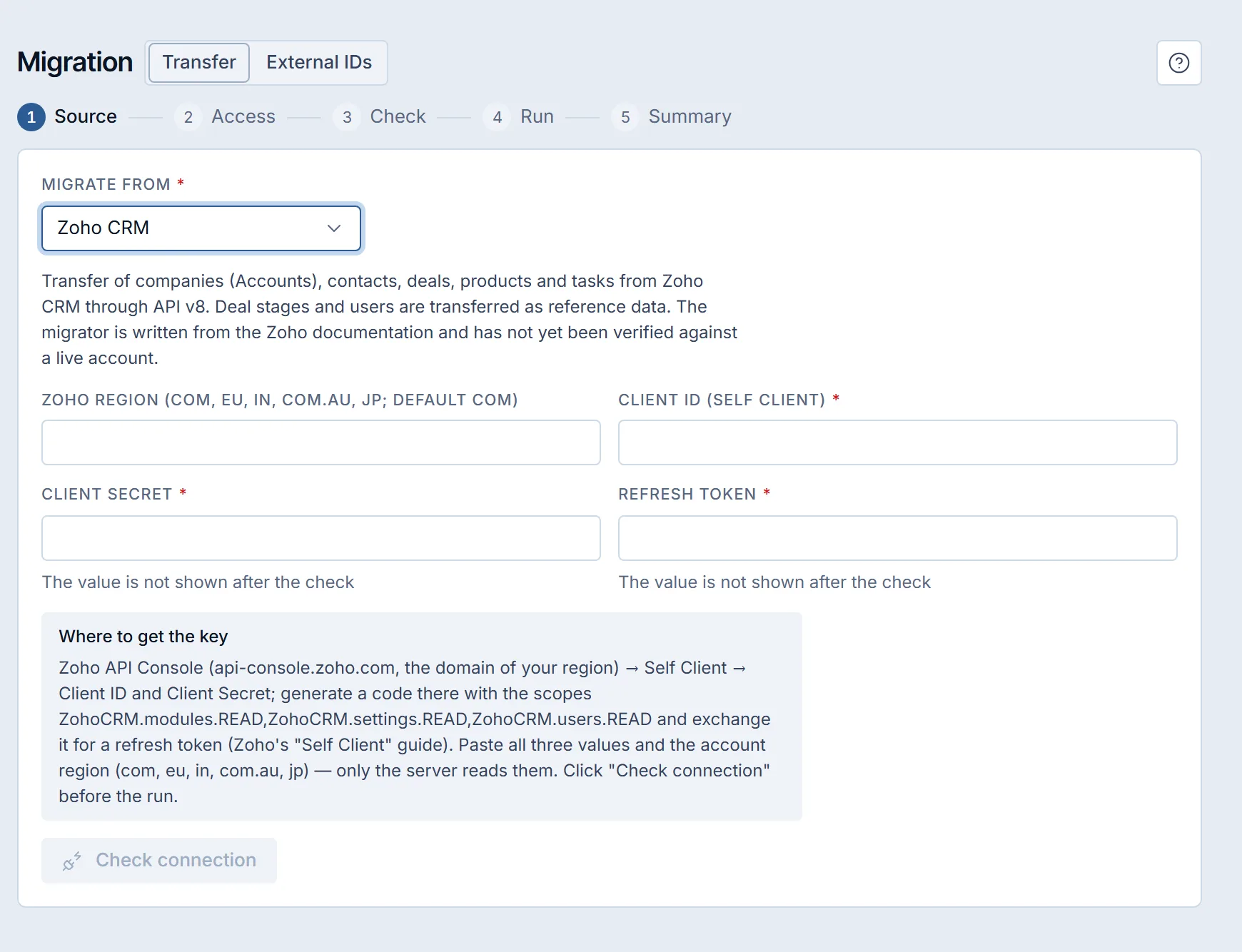
Connecting Zoho CRM in a Krokul demo workspace: the region, the three Self Client values, the hint and the connection check. Match the deal stages and users
The connector offers one source pipeline called Zoho CRM, and each value of the Stage field is a source stage. Stage rules point them at your Krokul stages, user rules point Zoho users at Krokul users, and a rule can also create a pipeline with its stages. The Migration screen has no step for these rules today, so they are written to the run through the migration API, by an implementation partner or by an administrator who works with the API.
With no pipeline rule at all and no default pipeline set, a deal has nowhere to go and is reported as a failed row with that reason. With the pipeline matched, a deal whose Stage value is not matched lands in the first stage.
Run a dry run and read the report
Start the dry run from the Check step. It uses the access values from the connection check on the server, reads the whole Zoho CRM account at 60 requests per minute, applies the rules and writes nothing in Krokul.
Compare its totals with the counts from step 1 and repeat the dry run after every change to the rules, until the skipped counts make sense and every failed row in the list has a reason you accept.
Run the import and check the summary
Start the real run. It works on the server in the fixed order, so you can pause and resume it, or close the page and come back to the summary. The summary lists created, updated and failed rows, and each failed row comes with its reason.
Compare the totals with step 1, open twenty records chosen at random and compare every field with Zoho CRM. Keep Zoho CRM readable until that check passes.
What does a dry run of a Zoho CRM migration show#
A dry run of a Zoho CRM migration shows, for each kind of record, how many Krokul records the real run would create, update and skip, and which rows would fail and why. The connection check alone cannot do this, because Zoho CRM returns no totals in its lists, so the check only proves that records exist.
| Records | Would be created | Would be updated | Would be skipped |
|---|---|---|---|
| Client companies | 260 | 0 | 8 |
| Contacts | 940 | 0 | 55 |
| Products | 120 | 0 | 0 |
| Deals | 415 | 0 | 0 |
| Tasks | 1,680 | 0 | 0 |
In the example nothing would be updated, because no earlier run exists. The skipped column holds duplicates of records already in the workspace, which Krokul skips by default, and also the rows that would fail. Failing rows are listed one by one with their reasons, while skipped duplicates are only counted, so compare that count with your own list of duplicates before the real run. The dry run skips write validation, so the real run can still fail on rows it passed.
How to roll back a Zoho CRM import that landed wrong#
A rollback of a Zoho CRM import removes the records that this import created and leaves everything else alone. It applies to one run at a time and is available only for a real run.
- Records the run created are removed, with the last kind of record going first.
- Records the run only updated keep their new values, so correct them by hand if needed.
- Records that someone changed after the import stay in place.
- A dry run created nothing, so there is nothing to roll back.
Krokul keeps the Zoho ID of every record it writes, so a second run updates the records that already moved and creates no duplicates.
What stays behind or needs a decision when you leave Zoho CRM#
The Zoho CRM connector was written from the Zoho documentation and tested on simulated responses. It has not been run against a live Zoho CRM account yet, and its field list is not confirmed on real data, so the dry run on your own account is the first real test and a transfer without it should not start.
- Calls, meetings and notes are not read. Export them from Zoho CRM first, because the tasks are the only activities that arrive.
- Zoho keeps the deal stage as a value of a list, so Krokul matches stages by those values. Match the closing stages deliberately, because a deal with an unmatched value lands in the first stage.
- Every product arrives with the currency UAH, and a deal without a currency does too. Check the currencies in step 1 and correct them after the import.
- Tasks and records get an assignee or an owner only from the users you matched in step 4. A task without a matched user has no assignee, unless a default assignee is set through the API.
Who should run the move: your team or an implementation partner#
A company with a short list of accounts, one pipeline and a few users can connect Zoho CRM, run the dry run and read the report on its own. A business with several Zoho pipelines, many users and years of deals gets the stage and user rules, the reading of the dry run and the final check from an implementation partner, who also trains the team.
The page on the sources and checks of Krokul data migration lists what Krokul reads, what it moves and what it leaves behind, and Zoho CRM and Krokul side by side puts the two systems in one table. Another source follows the same steps, for example migrating from Pipedrive.
Which mistakes cost the most when you migrate from Zoho CRM#
- Starting the import before the pipeline rules exist. Every deal then fails with the same reason, so write the pipeline and stage rules first and repeat the dry run.
- Forgetting the former employees. Only active Zoho users are read, so their deals get the responsible person from the usual Krokul rules and their tasks arrive without an assignee, and you decide in step 2 who takes them over.
- Closing Zoho CRM on the import day. Calls, meetings and notes cannot be exported later, so keep the account readable for a working week and export them first.
Frequently asked questions#
Which Zoho CRM regions can Krokul read?
The Migration screen lists com, eu, in, com.au and jp, and com applies when the field stays empty. Use the region of the Zoho domain where your account lives, the same one as in the API Console.
Does Zoho CRM change during the migration?
No, the connector reads records with GET requests and uses read scopes only. The single POST asks Zoho’s account server for an access token, so your Zoho data stays as it is and the account can stay open until the check passes.
Are calls, meetings and notes moved?
Calls, meetings and notes are not moved, while Zoho tasks are.
What happens to several Zoho pipelines?
Zoho pipelines are not read separately, so all deals arrive in one Krokul pipeline with their Stage values.