Short answer
A CRM migration checklist is a plan in six phases: audit what has to move, choose the source and access, map every old field to a new one, run a dry run that writes nothing, import in dependency order, then compare the totals and keep a rollback ready. Each phase ends with a check you can tick.
- Phases: six
- Writes nothing: the dry run
- You need: record counts from the old CRM
On this page
When do you need a CRM migration checklist#
A CRM migration checklist is needed whenever customer records change systems, because the checks that protect the data sit between the steps and are easy to forget. It is the working list behind the method in the guide on switching CRM without losing data.
- The team outgrows a spreadsheet and the customers, contacts and deals have to move into a CRM.
- A company changes from one CRM to another and wants to keep every deal with its history of stages.
- An implementation partner moves the data of a running business and needs a list the owner can sign.
- Field mapping
- Field mapping is the table that says which field of the old system fills which field of the new one, and which old fields are left behind.
- Dry run
- A dry run is a trial import that reads the source and applies the mapping, writes nothing, and reports how many records would be created, updated and skipped.
- Rollback
- A rollback removes the records that one import created, so the database returns to its state before that import.
How to audit the data before a CRM migration#
A data audit for a CRM migration lists every kind of record in the old system, counts it and decides whether it moves, goes to an archive or stays behind. The counts become the totals you compare against after the import, so write them down before anything else.
- List the kinds of records, such as client companies, contacts, deals, products, tasks and custom objects.
- Count the records of each kind and keep the table.
- Mark each kind as move, archive or leave behind.
- Set a cut-off date, for example deals closed more than three years ago go to a file.
- Find the tables that no export covers, such as emails, calls and attachments, and decide where their archive will live.
- Name one person who signs off the audit table.
How to choose the source and prepare access#
The source of a CRM migration is either files exported from the old system or a connection to its API. Pick one route for each kind of record and prepare it before the import day, because a missing permission found on the day costs the whole day.
- Export each kind of record to its own file, with a header row and one kind of record per file.
- For an API connection, create an access key with read rights only and store it where only an administrator can reach it.
- Check the request limit of the old system, because a limit of 60 or 80 requests per minute makes a large database run for a long time.
How to map every old field to a new field#
Field mapping for a CRM migration gives every old field a destination or a decision to leave it behind. Make the table before any record moves, because one wrong row repeats on every record. Two old fields that fill one new field need a written rule, such as joining them or keeping the first non-empty value.
| Old column | New field | Decision |
|---|---|---|
| Full name | Contact name | Required; split into first and last name if the new CRM keeps them apart |
| Contact e-mail | Required for duplicate detection; lower-case it before the import | |
| Phone 1, Phone 2 | Contact phone | Keep the first non-empty value and archive the second |
| Company | Client company | Import the companies file first so the link finds its target |
| Region | Custom field Region | Create the custom field before the import |
| Internal note | Not imported | Leave behind and keep in the archive file |
How to run a dry run and read its report#
A dry run for a CRM migration processes the whole source with the final mapping and writes nothing, so you see the result before it exists. Read the report as a list of questions. The report counts what would be created, updated and skipped, and lists each row that would fail with its reason. Every failing row needs a reason you accept, and a reason that repeats hundreds of times points to the mapping or the file.
| Result | Rows | Reason |
|---|---|---|
| Would be created | 2,180 | New companies with a name and a tax number |
| Would be updated | 0 | No earlier import of this file |
| Would be skipped | 150 | Duplicates by name of records already in the workspace, counted only |
| Would fail | 70 | Rows without a name, listed with the row number and the reason |
Created + updated + skipped + failing = rows in the file. In the example, 2,180 + 0 + 150 + 70 gives 2,400. The 70 rows without a name are listed and are a file problem to fix at the source, and the 150 skipped duplicates are only counted, so check them before the real run.
In what order to import records#
Import records in dependency order: client companies first, then contacts, then products, then deals. A deal refers to a company and a contact, so both must exist before the deal arrives. Run one kind of record at a time and check its totals before starting the next.
- Import client companies and compare the count with the audit table.
- Import contacts and open ten of them to see that each one sits under the right company.
- Import products, then deals with their stages and owners.
- Import tasks last, because they refer to deals and contacts.
- Stop at the first count that differs and find the cause before moving on.
How to check the totals and plan the rollback#
The final check of a CRM migration compares the counts of the new system with the audit table, then compares twenty records field by field with the old one. Agree the rollback condition in advance, for example any difference of more than one percent in a kind of record, so the decision rests on a number that was agreed before the import.
| Kind of record | In the old CRM | In the new CRM | Difference | Action |
|---|---|---|---|---|
| Client companies | 2,330 | 2,330 | 0 | Accept |
| Contacts | 5,410 | 5,402 | 8 | Read the 8 failed rows, fix and import again |
| Deals | 1,260 | 1,100 | 160 | Roll back the deals run, fix the stage mapping, import again |
A rollback removes what one import created and nothing else. It does not restore records that the import only updated, and it does not remove records that people changed after the import. Correct those by hand.
The CRM migration checklist to copy#
Copy this list into your project plan and tick each line with a name and a date.
- Every kind of record is listed and counted, and the table is signed off.
- Each kind is marked move, archive or leave behind, and a cut-off date is set.
- Email threads, call logs and attachments have an archive outside the CRM.
- One route is chosen per source, and the access key has read rights only.
- The request limit of the old system is known and the run time is estimated.
- The mapping table covers every old field, and every required new field has a source.
- Custom fields, stages and users exist in the new CRM before the import.
- The mapping is saved as a profile.
- The dry run is done, every failing row has a reason, the skipped count is understood and the mapping is fixed.
- The import order is companies, contacts, products, deals, tasks, one kind at a time.
- Counts are compared after each kind, and twenty records are checked by hand.
- The rollback condition is written down and the person who decides is named.
- The old CRM stays readable for one full working week after the check.
Which mistakes break a CRM migration#
- Importing the whole database in one run. When the totals differ, nobody knows which kind is wrong, so import one kind at a time.
- Skipping the dry run. One mapping error then lands on every record, so read a dry run report before the real import.
- Leaving duplicates in the source. They arrive as duplicate records, so clean the obvious ones first and compare the skipped count of the report with what you expect.
How the checklist works in Krokul#
Krokul CRM is a B2B CRM for contract-based companies: deals, projects and profit per client in one system, implemented by integration partners. Its Migration screen follows the same phases, and an administrator runs it, because migration is limited to that role.
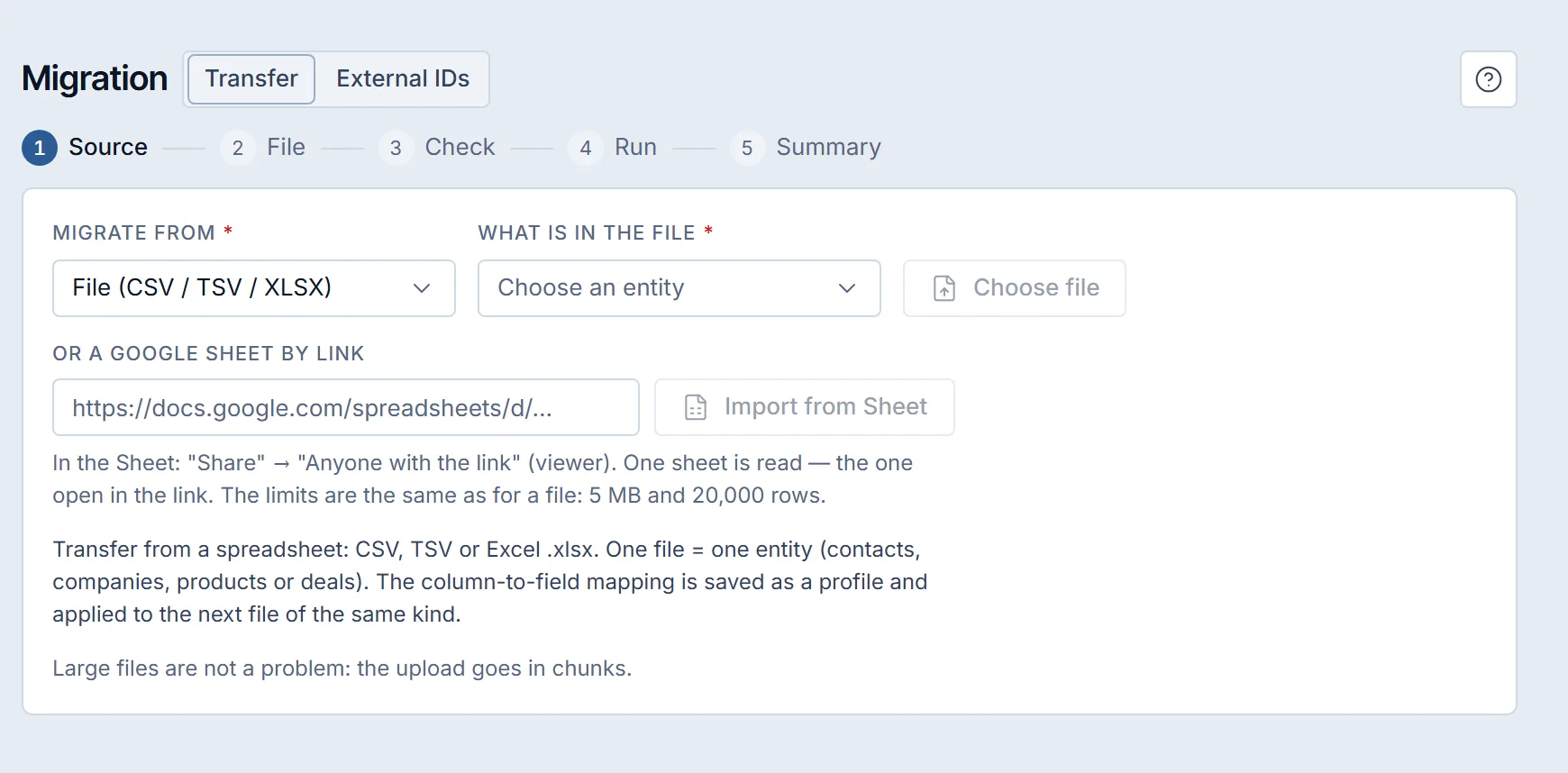
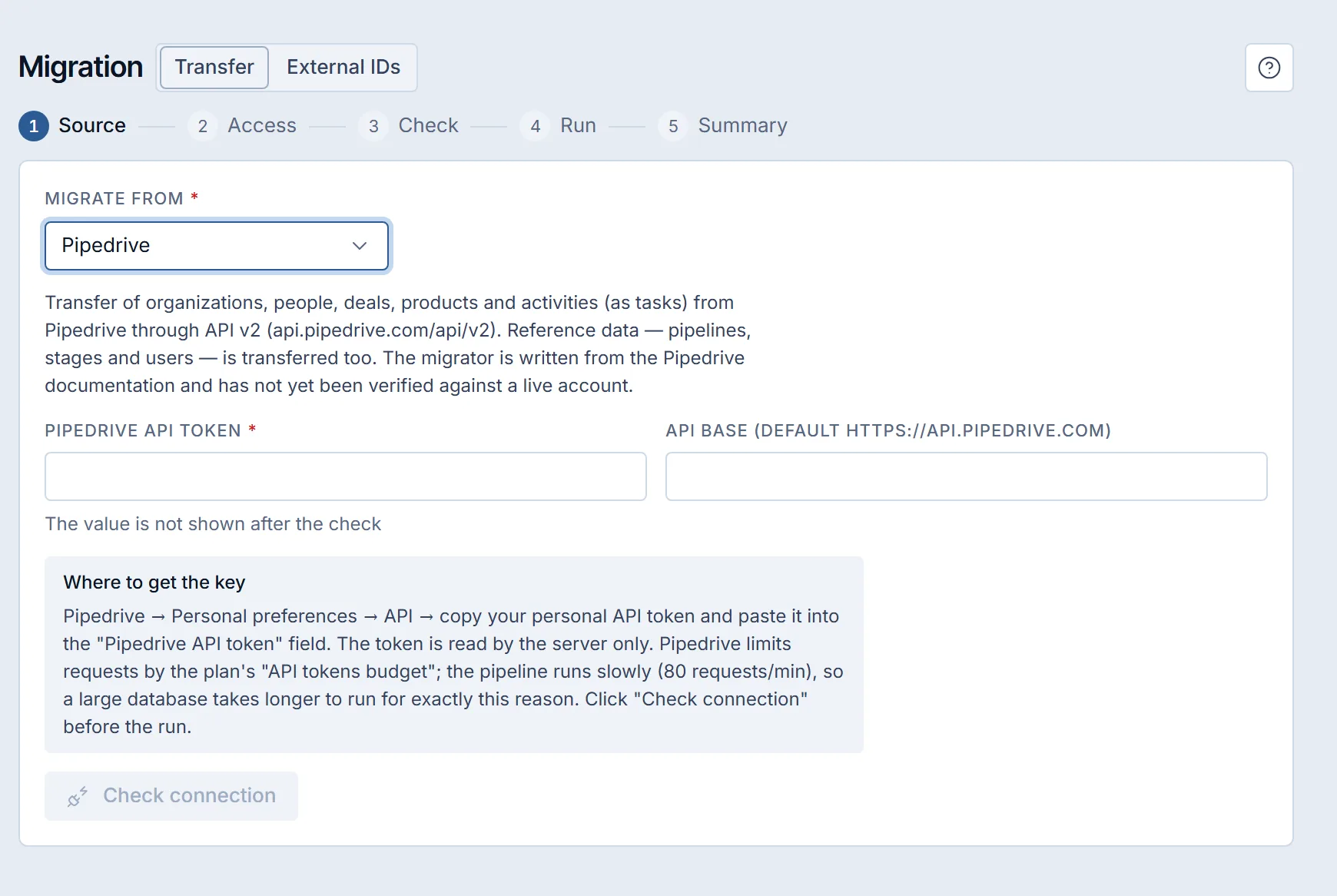
The source step offers a file in CSV, TSV or XLSX format, a Google Sheet by link, or an API connection to Pipedrive, HubSpot, Zoho CRM, ClickUp, KeyCRM, KeepinCRM and SalesDrive. One file holds one kind of record, such as contacts, client companies, products or deals, up to 5 MB and 20,000 rows, and a larger file is uploaded in parts. Tasks and history do not come from a file. The guides on moving from spreadsheets to a CRM and migrating from Pipedrive show the two routes in detail.
The Check step shows the columns of the file, its first rows and a proposed mapping, and it lists the required fields that still have no column. The start button stays disabled until every required field has one, and the finished mapping can be saved as a profile. A dry run is a separate run on the same file or connection with the same mapping. It writes nothing and reports how many records would be created, updated and skipped, and why.
The real run goes through the records on the server in dependency order, so you can pause it, resume it or close the page and come back to the summary. The summary lists created, updated and failed rows, and each failed row appears as a row number with a reason. A record created by hand with the same phone, e-mail or name stays unchanged, and the matching row of the file is skipped as a duplicate.
If a run landed wrong, the Rollback button on the summary step removes exactly what that run created. Records the run only updated keep their new values, and created records that someone has already changed stay in place. A dry run created nothing, so it has nothing to roll back. The External IDs tab remembers which old code each record came from, so a repeated import updates those records and does not duplicate them.
The connections to API sources were written from each system’s documentation and have not yet been checked against a live account, which makes the dry run on your own data a required phase. Email threads and call logs or recordings are not transferred from any source, so the archive from the audit stays outside the CRM. Planned calls and meetings from Pipedrive arrive as tasks. A company with years of data, several pipelines and custom fields can order the setup and the transfer from an implementation partner, and anyone can try the screen with a sample file. The Migration page lists what the product moves and what it leaves behind.
Frequently asked questions#
How long does a CRM migration take?
A source with a request limit takes longer to read, and the audit and the mapping usually take more time than the run, so plan the preparation first.
Can I run the import twice?
Yes, when the system remembers the old ID of each record. In Krokul a repeated import updates the records that already moved by their external ID. A file without an ID column is matched by a key built from all the key fields together, such as phone, e-mail and full name, so late changes can be brought over with a second run.
What do I do with email threads and call logs?
Export them from the old system and keep an archive, because Krokul does not transfer email threads or call logs and recordings from any source. Planned calls and meetings from Pipedrive arrive as tasks.