Short answer
To move from spreadsheets to a CRM, split the data into one sheet per kind of record, clean duplicates and give every row its own ID, map each column to a CRM field, run a trial import that writes nothing, then import for real and compare the totals with the sheet. Keep the original files until the check passes.
- Steps: seven
- Before the real import: a dry run
- You need: your sheets saved as CSV or XLSX
On this page
When to move from spreadsheets to a CRM#
Moving from spreadsheets to a CRM is worth the effort when the sheets cost more time than they save. It is one case of the wider job described in the guide on switching CRM without losing data, and its starting point is a sheet with no ready export and often no IDs.
- Two people edit the same customer sheet and each keeps a different version.
- A phone number or a contract date sits in a comment cell, and nobody can search for it.
- A manager leaves and takes the only up-to-date copy of the pipeline.
- Finding the open deals or the clients who owe money means opening three files.
- Spreadsheet-to-CRM migration
- Spreadsheet-to-CRM migration is the transfer of the rows of your sheets into linked records in a CRM: client companies, contacts, products and deals.
- Dry run
- A dry run is a trial import that reads the file and applies the mapping, writes nothing and reports how many records would be created, updated and skipped.
How to move from spreadsheets to a CRM in seven steps#
Moving from spreadsheets to a CRM turns each sheet into one kind of record and checks the result before anything is final. Finish each step before the next, because a mistake in the headers repeats on every row.
List every sheet and decide what it holds
Open every file where customer data lives, including the private sheets of managers, and write down what each one contains: companies, people, products or deals. Count the rows in each, because these counts are the totals you check at the end.
Mark the sheets you will archive, such as lists of deals closed years ago, and leave them out of the import.
Split the data into one file per kind of record
A CRM stores companies, contacts, products and deals as separate records, so each file carries one kind. A sheet with a company, a person and a deal on every row becomes three files, each with a header row in the first line. Save each file as CSV or XLSX, the formats most CRMs read.
Remove duplicates and add an ID to every row
Sort the sheet by phone, email or company registration number and merge the rows that describe the same entity. Two rows for one company become two records.
Add a column with a unique code per row, such as C-0001, when the sheet has no ID of its own. A code that stays with the record lets you import a corrected file again and update the records, so no duplicates appear.
Split combined cells and standardize values
Give each fact its own column. A cell with “John, Mary” or with two phone numbers separated by a slash needs one column per value, or one row per person. Write dates in one format, amounts as plain numbers and the currency in its own column. Spell stages, sources and tags the same way on every row, because “Proposal” and “proposal sent” count as two values.
Map every column to a CRM field
Write down for each column the field it fills in the CRM, or the decision to leave it behind. Start with the required fields: a contact needs a name, a company needs a name and a deal needs a title.
Two columns that fill one field need a rule, such as joining them. Create the pipeline stages and sources the file refers to before the import, in the order given in the guide on setting up a CRM in one day.
Run a dry run and read the report
Import the file once with writing switched off and read the report line by line. Every row that would fail comes with a reason, and one reason repeated a hundred times points to a mistake in the headers or the mapping.
Repeat the dry run until the number of records to be created matches the number you expect from step 1.
Import for real and check the totals
Import one file at a time: companies and contacts first, then products, then deals. After each file, compare the number of records in the CRM with the number of rows you expected, and check ten random records against the sheet.
Keep the original sheets read-only for at least a working week. When a run lands wrong, remove the records it created and import the corrected file again.
How to reconcile a spreadsheet import with the original sheet#
Reconciling a spreadsheet import means accounting for every row of the sheet. The example follows a customer sheet of 840 rows.
| Step | Rows | What happens |
|---|---|---|
| Rows in the sheet | 840 | Counted in step 1 |
| Empty rows and repeated header rows | 15 | Deleted in the sheet |
| Duplicate companies | 45 | Merged by hand in step 3 |
| Rows to import | 780 | 840 minus 15 minus 45 |
| Result | Rows | Meaning |
|---|---|---|
| Would be created | 770 | New client companies |
| Would be updated | 0 | No earlier import of this file |
| Would be skipped | 10 | Same company already entered by hand in the workspace |
Rows to import = rows in the sheet minus empty rows minus merged duplicates, which gives 840 − 15 − 45 = 780. The dry run must add up to the same number: 770 created + 0 updated + 10 skipped = 780. When the totals differ, find the cause before the real import.
Which mistakes break a spreadsheet import#
- Importing one sheet that mixes companies, people and deals. Every row then fills the wrong fields, so split it into one file per kind of record.
- Keeping merged cells and subtotal rows. A subtotal row becomes a fake record, so remove both before the export.
- Importing for real on day one. A wrong mapping repeats on every row, so run a dry run first.
A checklist for moving spreadsheets to a CRM#
Copy the list into your task tracker and tick each line before you start the next. The same phases, with the rollback conditions, are in the CRM migration checklist.
- Every sheet is listed with its owner, its kind of record and its row count.
- Each file holds one kind of record and starts with a header row.
- Duplicates are merged and every row has a unique ID.
- Every column has a CRM field or a decision to leave it behind.
- The dry run adds up to the number of rows to import.
- After the import, the totals and ten sample records match the sheet.
How Krokul imports a spreadsheet#
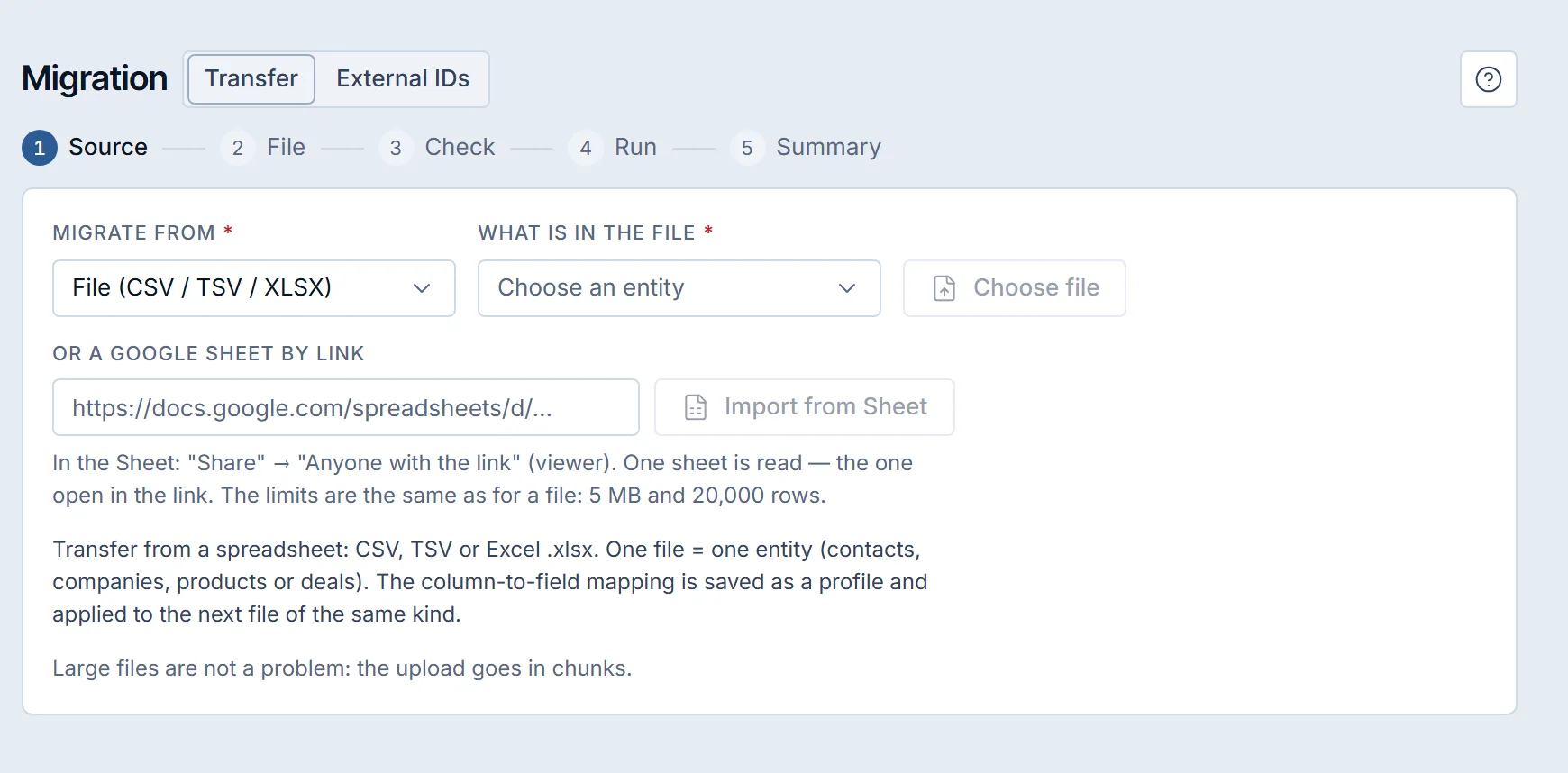
Krokul CRM is a B2B CRM for contract-based companies: deals, projects and profit per client in one system, implemented by integration partners. Its Migration screen follows the steps above as a wizard, and an administrator runs it.
Choose File (CSV / TSV / XLSX) as the source, then choose what the file holds: contacts, client companies, products or deals. A file may hold up to 5 MB and 20,000 rows and is uploaded in parts of 512 KB, and a larger file is refused with its size or number of rows instead of being cut short. A Google Sheet shared as “Anyone with the link” works too, with the same limits, and Krokul reads the sheet open in the link.
On the Check step Krokul shows the columns and the first rows of the file, proposes a field for each column from its heading and highlights the required fields. The run button stays disabled until every required field has a column, and the finished mapping can be saved as a profile for the next file of the same shape.
| Kind of record | Columns Krokul can fill | Required |
|---|---|---|
| Contacts | Name, phone, email, position, note, birthday, company name, your own ID | Name |
| Client companies | Name, legal name, registration number, phone, email, notes, bank account, bank, VAT number, your own ID | Name |
| Products | Name, SKU, barcode, category, unit, price, purchase price, currency, description, your own ID | Name |
| Deals | Title, amount, currency, comment, contact name, contact phone, company name, pipeline, stage, source, tags, date of next contact, your own ID | Title |
The dry run starts from the same step as a separate run with the same file and mapping. It reports how many records would be created, updated and skipped, lists the rows that would fail with a reason, and writes nothing. The real run goes on the server, so you can pause it or close the page and return to the summary, which counts created, updated and failed rows, and each failed row appears as a row number with a reason.
A row that duplicates a record already in the workspace is skipped, and that record stays unchanged. Without your own ID, the key of a row is built from several fields together, for example phone, email and name for a contact, so a corrected file that changes any one of them gets a different key. Map the ID column to the external ID field, and the records that already moved are updated on the next import. A row that an earlier run skipped as a duplicate stays skipped. When all the key fields of a row are empty, the key comes from its row number, and the Check step warns you with the number of such rows.
Tasks and history do not come in from a file. A company name written in a contact or deal file is stored on the record as a value, and the file import builds no link to the company record. The rollback button on the summary removes the records that run created, keeps the records it only updated in their new state and leaves alone any record someone changed afterwards.
Should your team or an implementation partner move you from spreadsheets#
A company with one or two sheets and a few hundred rows can run the move from spreadsheets itself, and a business with years of data, several pipelines and history scattered across files is safer with an implementation partner, who maps the data, trains the team and transfers the records. The Migration screen is the same in both cases, and the sources and limits of Krokul data migration are listed on one page.
Frequently asked questions#
Can I import an Excel workbook with several sheets?
Krokul reads the first sheet of a workbook only. Move the sheet you need to the first position, or save it as its own file, and repeat the import for each sheet.
Do Excel formulas and old .xls files import?
Formulas import as the value Excel last saved, and the old .xls format is not read. Save the workbook as .xlsx or CSV before you import.
What happens if I import the same file twice?
Records that carry the same external ID are updated, so no duplicate appears. Without an ID, the key is built from several fields together, so changing any one of them in the corrected file gives a different key, and the most reliable route is an ID column. A row whose key fields are all empty is keyed by its row number, which a re-sorted file changes.
Are tasks and email history imported from a spreadsheet?
No. A file import brings in contacts, client companies, products and deals. Tasks and communication history stay in the original files, so archive them before you retire the sheets.