Short answer
To set up price lists and discount rules in Krokul, open the Pricing screen, create a price list for each client tier with quantity breaks, write the discount rules, record the client terms, choose how discounts combine, and check the result with Calculate price for one client and one quantity before reps start quoting.
- Steps: six
- Screen: Pricing
- Check: Calculate price
On this page
When to move prices out of spreadsheets#
- Reps keep a price file on their own laptops, and two files give two prices for one client.
- A promotion ends on the 31st, and nobody removes it from the quotes written after that date.
- A key account was promised a loyalty discount, but the agreement lives in one email thread.
- Managers ask a colleague how a client price was calculated because nothing shows the steps.
The method behind these steps is described in the guide on quoting B2B prices fast and getting them right. Here is how the same records look in Krokul, with the order of work that avoids rework. This guide builds the lists and rules. Which price one particular client gets when several apply is the subject of setting different prices for different customers, and a distributor’s worked example follows that choice step by step.
Who can change what on the Pricing screen#
Every role can read price lists and rules and can calculate a price. An administrator and a manager edit price lists and client terms, only an administrator changes discount rules, and the settings tab is also an administrator’s. Plan the setup with the administrator in the room.
Create a price list for each client tier
Open the Pricing screen and add a price list, then add products and enter a price for each row. A row without a price stays red and blocks saving, so every saved row carries a price.
Quantity breaks live in the same list. Add the same product twice with a different “from quantity”, for example 0 and 10. Krokul takes the row with the highest threshold that does not exceed the quantity, so 12 units use the price from 10.
Tip. Mark one list as the default. When no rule or client terms point to another list, the default list applies, and only one list can carry the mark at a time.
Derive the other tiers by copying
Copy a price list from the row menu to start the dealer or key-account tier from the base prices. The copy holds the items with their prices and starts with standard currency, rounding and period, so check its parameters.
Archive a list when the tier ends. Krokul refuses to archive the default list and any list that active client terms still use, and it names the reason.
Write discount rules for promotions and agreements
A rule has one of four effects: a percentage off, an amount off, a fixed price, or the price from another list. Limit it to chosen products, clients or segments, and leave a condition empty to apply the rule to everybody.
Add the extras that protect you: a promo code with a cap on the number of uses, a validity period and a margin floor. Rules are listed from the top down and you drag them to reorder. The order matters most under the chain policy of step 5, where each discount applies to the price left by the previous one.
Record client terms for key accounts
On the client terms tab choose a company, a contact or a segment and give it a price list, a personal discount, a settlement currency, a payment deferral, a credit limit and an end date. Each addressee holds one record, so saving new terms replaces the old ones.
The guide on setting different prices for different customers explains how these records are chosen when a client has several.
Choose how discounts combine
The settings tab holds the policy for several discounts on one line. The default takes the single best discount. “Chain” applies each discount to the already reduced price, and “sum” adds the percentages together.
The same tab sets the largest manual discount per role, 100 percent for an administrator, 20 for a manager and 5 for an agent by default, and the percentage above which a rep must write a reason. Discounts above a role’s cap go through the route described in capping discounts by role and approving exceptions.
Check one price before reps use it
Press Calculate price, choose a product, a client and a quantity, and read the steps: price list, rules, client terms and rounding. A step that did not apply is dimmed with the reason.
Run it for your key account and for a client without terms. If the numbers surprise you, the step that caused it is on the screen.
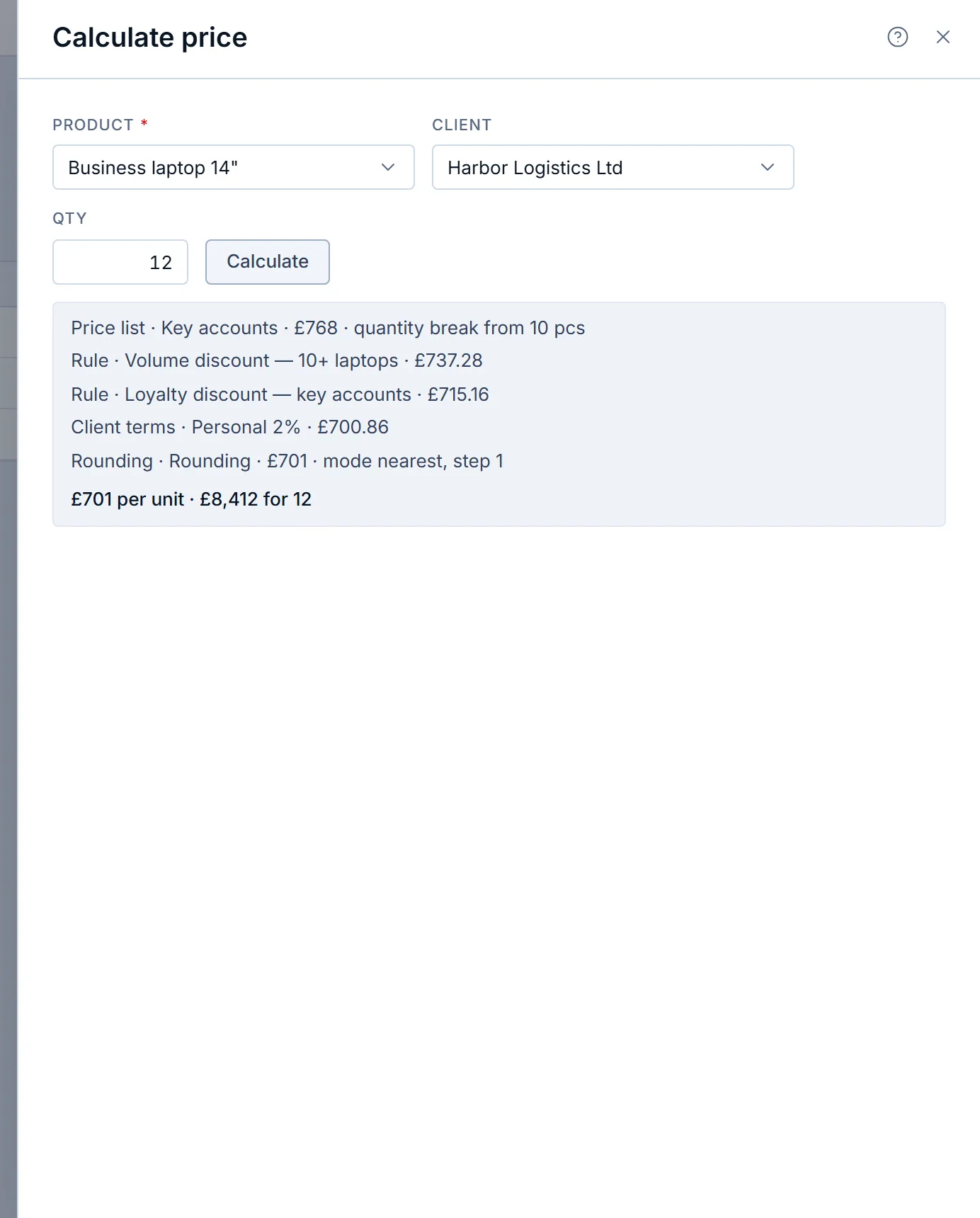
Calculate price on a demo company screen: five steps from the price list to the rounded price of 12 laptops.
How the steps add up to one price#
The frame above shows a demo company selling to Harbor Logistics Ltd. The list price falls through three discounts and is then rounded, and each step starts from the price left by the previous one. The price a rep sees in the quote item picker is built from the same lists and terms.
| Step | What applies | Price per unit |
|---|---|---|
| Price list | Key accounts list, quantity break from 10 units | £768.00 |
| Rule | Volume discount of 4 percent for 10 or more laptops | £737.28 |
| Rule | Loyalty discount of 3 percent for key accounts | £715.16 |
| Client terms | Personal discount of 2 percent | £700.86 |
| Rounding | Nearest whole pound | £701.00 |
The line total is £701 × 12 = £8,412. This demo company applies discounts in a chain. With the default policy, which takes the best single discount, the same client would see only the largest of the three reductions.
Which setup mistakes cause surprising prices#
- Entering quantity breaks from 1 instead of 0. A fractional quantity such as 0.5 kg falls below the lowest threshold and the list gives no price for it; start the first break at 0.
- Creating a rule per client. Use a segment rule for a group and keep the client-level rule for one exceptional agreement.
- Stacking a promotion on a personal discount without choosing a policy. Decide between best, chain and sum first, because the same discounts give three different prices.
- Leaving a promotion rule without a validity period. Set the end date when you write the rule.
- Archiving the default list or a list that active client terms use. Krokul refuses and names the reason, so change the default or the terms first.
How to stop a discount from going below a floor#
Krokul offers two floors. The minimum price sits on a row of the price list, and rule, client-terms and promo-code discounts raise the price back to it, while the Calculate price panel shows a separate step with the reason. The margin floor sits on a rule, and any discount that pushes the line margin below it is refused for every role except an administrator, who can confirm it explicitly. A role that cannot see cost gets the refusal without the margin figure.
A pricing setup checklist#
- One price list per tier, one marked as default, every row priced.
- Quantity breaks start at 0 and rise in the order of the discounts you promised.
- Discount rules named by what they do, with validity dates and the order checked.
- Client terms for every key account, each with an end date.
- Stacking policy and role caps chosen in settings.
- One price checked with Calculate price for a client with terms and a client without.
For the overview of lists, tiers and rules, see how Krokul builds a price from lists, rules and client terms.
Frequently asked questions#
Who can create discount rules in Krokul?
Only an administrator creates and edits discount rules. Managers and agents can read them and calculate prices, and a manager can edit price lists and client terms.
What happens when several discounts apply to one line?
The settings policy decides. By default Krokul takes the single best discount; the other two policies apply discounts one after another or add the percentages together.
Can a promo code work without a rule?
No. A promo code belongs to a discount rule and applies only to a deal that carries that code, and a code is unique to one rule. The code arrives through the API or an integration, and the Calculate price panel does not take it into account.
Which price list does a client get when no rule or terms apply?
The default list from settings, then the list marked as default, and when neither has a row for the product the price from the product card.