Short answer
To add items to a quote fast in Krokul, open the product picker from the deal, find products by name, SKU, brand or barcode, set the quantity in the row, paste a client’s list or repeat the last order, check the free stock and press Save once. The deal receives the line items only after you save.
- Steps: six
- Opens from: the deal
- Saved: once, at the end
On this page
When typing line items by hand costs too much#
- A client sends a list of forty items, and the rep looks up each one in a separate catalog.
- A rep promises a product that another deal has already reserved.
- A repeat customer asks for “the same as last time”, and nobody can find last time’s order.
- The price on the quote is the list price, because the client’s terms were not applied to the line.
Fast quoting is one part of the method in the guide on quoting B2B prices fast and getting them right. The picker supports it by showing the client’s price and the free stock in the same row, so the rep chooses with both numbers in view. The rows come from the product catalog with variants and bundles.
Open the picker from the deal
Press the Picker button on the line items tab of the deal card, or press Alt+P. The picker also opens from the Deal items button on a board card and from the row menu in the deals list, and the same window is available from an invoice or a delivery note.
The deal’s own line items sit at the bottom of the window, so what you see there is exactly what will be written.
Find the product in the catalog
Choose a group on the left, such as All, Recent or Bought by client, or type a name, SKU, brand or barcode in the search box. Narrow the list with filters for stock, brand and tags, and switch on the Scanner to add a product by its barcode.
The price in each row is the price for this deal, built from the price list and the client’s terms. The Available column counts the warehouse stock minus reservations, including other deals’.
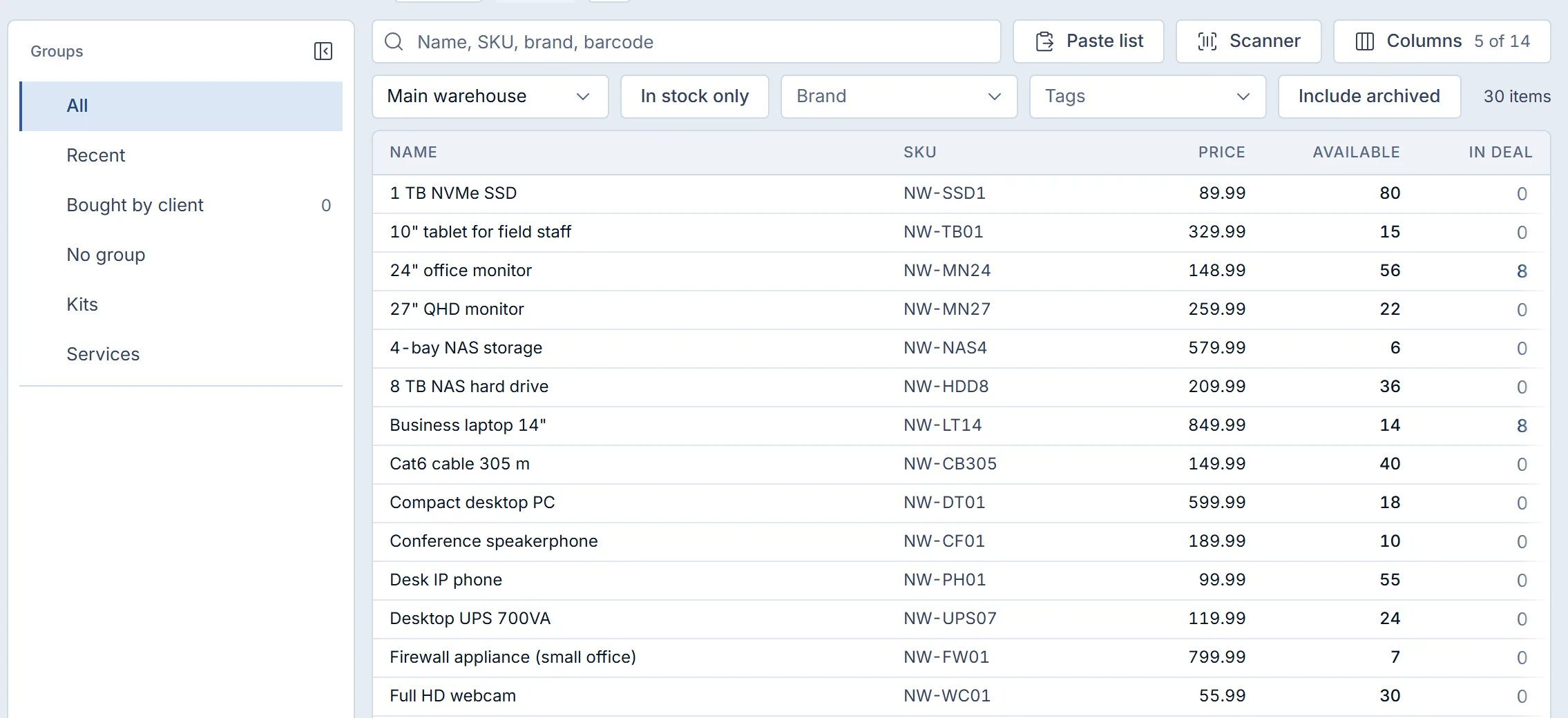
The picker of a demo company: groups on the left, price and available stock per row, and the In deal column with the quantity already in this deal. Set the quantity in the row
Hover over a row and press plus to add one step, or click the number and type the exact quantity. A product with a minimum batch or an order multiple adds that batch on the first press, and a quantity outside the multiple is flagged and still accepted.
Zero removes the product from the deal.
Paste the client’s list
Press Paste list and paste lines with a SKU or a name followed by a quantity. Krokul searches by SKU first, then by barcode, then by name, and splits the result into Found and Not found.
Correct the quantities in Found, choose a similar product for each row in Not found, and add the items to the deal in one action. The paste itself writes nothing to the deal.
Repeat the last order of a returning client
Open the Bought by client group, which appears when the deal has a client, and press Repeat order. Krokul takes the lines of the client’s latest issued invoice, delivery note or certificate, or the lines of one of the client’s recent deals when there is no such document, and prices them with the client’s terms of today.
Each product in the group shows when the client last bought it.
Check variants and alternatives, then save
A product with size and colour axes opens as a grid where you type a quantity into each cell. A product that has links to others gets an alternatives glyph in its row, and pressing it (or Alt+A) shows substitutes, related products and accessories.
Press Save, or Ctrl+Enter. The header says “not saved” with the number of changes until you do, and closing the window without saving asks you to confirm.
How a quote’s lines add up#
A quote’s subtotal is the sum of quantity multiplied by the unit price of each line. The table uses two lines with the prices and quantities visible in the frame above.
| Product | Quantity | Unit price | Line total |
|---|---|---|---|
| Business laptop 14" | 8 | £849.99 | £6,799.92 |
| 24" office monitor | 8 | £148.99 | £1,191.92 |
| Subtotal | £7,991.84 |
In the frame the laptop shows 14 units available and 8 in the deal. The picker puts both numbers in the same row, so the rep compares the quantity on the quote with the stock before promising a date.
Which picker mistakes produce a wrong quote#
- Closing the window before pressing Save. The deal keeps its old lines, so check for the “not saved” note first.
- Adding every row of a pasted list without reading Not found. Missing products make the quote shorter than the client’s list, so resolve each row.
- Ignoring a zero or yellow Available figure. A grey zero means no free stock and yellow means the deal holds more than the free stock, so agree the date with the warehouse.
- Typing a quantity that is not a multiple of the supplier’s batch. The picker accepts it with a mark, so confirm the batch with the client.
Who can use the picker and what it shows#
Administrators, managers and agents can pick and save, and an agent works in their own and unassigned deals. An observer sees the picker without the Save, plus and Paste list controls. Only administrators and managers see the Cost and Margin columns. Lines can still be edited in a deal that is already won or lost.
A picker routine for every quote#
- Open the picker from the deal so the prices follow the client.
- Paste the client’s list first and resolve every Not found row.
- Use Repeat order for returning clients and review the prices it gives.
- Read the Available and In deal figures before agreeing a delivery date.
- Press Save and check the total in the header.
To see the full window, read about the product picker in Krokul. The guide on setting up price lists and discount rules explains where the prices in the rows come from, and sending a quote with several options covers the next step.
Frequently asked questions#
Where does the product picker open from?
It opens from the deal card, from the Deal items button on a board card and from the row menu in the deals list. Invoices and delivery notes have the same Picker button on their line items tab.
Does pasting a list change the deal?
No. Paste list only recognises the lines. The products reach the deal when you add them and then save.
Why does the plus button add more than one unit?
The product has a minimum batch or an order multiple. The first press adds the batch and each next press adds one multiple, and you can click the number to type any quantity.
Can I use the picker when the deal is already closed?
Yes. Lines can be added and edited in a won or lost deal, because closing fixes only the exchange rate.