Short answer
To run every deal in one place in Krokul, open the Deals screen. The board shows each deal as a card in the column of its stage, so you create a deal, drag it from stage to stage and write the next step on the card. The deal card holds the fields, items, documents and the feed of one sale.
- Screen: Deals
- Views: board and list
- Role: sales rep and head of sales
On this page
When the board and the card replace your deal tracker#
- The status of a deal lives in a spreadsheet, a chat and the rep’s head, and each shows a different one.
- A colleague takes over a client and finds out what was promised only by asking.
- Nobody can tell which deals have no next step until the client writes first.
- A deal is dropped as lost and the reason is never written down.
The routine below is the daily layer of a B2B sales pipeline that predicts revenue. The stages and their rules come from the pipeline settings, so building the pipeline with stage gates comes first.
How to run a deal from first call to close in six steps#
Create the deal in the stage where it starts
Add a deal from the Deals screen. The title is the only required field of the form, and the stage and the pipeline default to the current ones. Pick the client, the main contact, the expected amount, the currency, the responsible person and the source. When the client already has an account owner, that person fills in as responsible until you choose another.
Write the next step in the form and choose its due date. When the field is filled, Krokul creates a task for the deal together with the deal, so the deal starts with a next action. The field is optional, which is why the morning review below looks for deals without one.
Read the board by columns
Each column is a stage and each card is a deal. Every card carries the title and the next action of the deal, and flags a deal that has none or whose date has passed. The administrator chooses the other lines for each pipeline, such as the client, the amount, the contact, the probability, the tags or your own fields. The card has room for eight lines in all, the title and the next action included.
The screen also has a list view of the same deals. Switch to it when you need to sort the whole register by a column, filter by period or change many deals at once.
Move the deal by dragging the card
Drag the card to the next column. When the target stage requires fields the deal does not have, Krokul asks for them in a window before the move and moves the deal after you fill them in. Columns that the pipeline rules forbid are known before you drop the card, so the board shows the reason while the card is still in your hand.
Dragging a card to a lost stage opens the window for a lost deal. Choose the reason, add the competitor and a comment, and set a date when to return to the client if you want the responsible person to get a task for it. The button does not work without a reason.
Act on the deal without opening it
Point at a card and use its action bar: add a note to the deal feed, create a task already linked to the deal, open the item picker or open the deal. The more actions menu moves the deal to another stage and changes the responsible person.
Click the next action line on the card to plan a call, a meeting or a contact day without leaving the board. A call or a meeting becomes a task of the deal for the responsible person, and for a meeting you write what must be agreed by its end. To hand the deal to a colleague, choose the responsible person in the more actions menu.
Open the card to work with the whole deal
The deal card holds the fields of the current stage, the items, the participants, the qualification answers and the documents of one sale, and the feed with every change and every comment, call or letter. In the header the stage is a pill, and a change of stage is written to the feed. A deal amount follows the sum of the items until you type it by hand, and a lock next to the amount shows that it stays as typed.
Fields and items are saved with the Save button. When a colleague saves the same deal while you edit, Krokul shows who changed which fields, keeps your edits and lets you overwrite the version or take theirs.
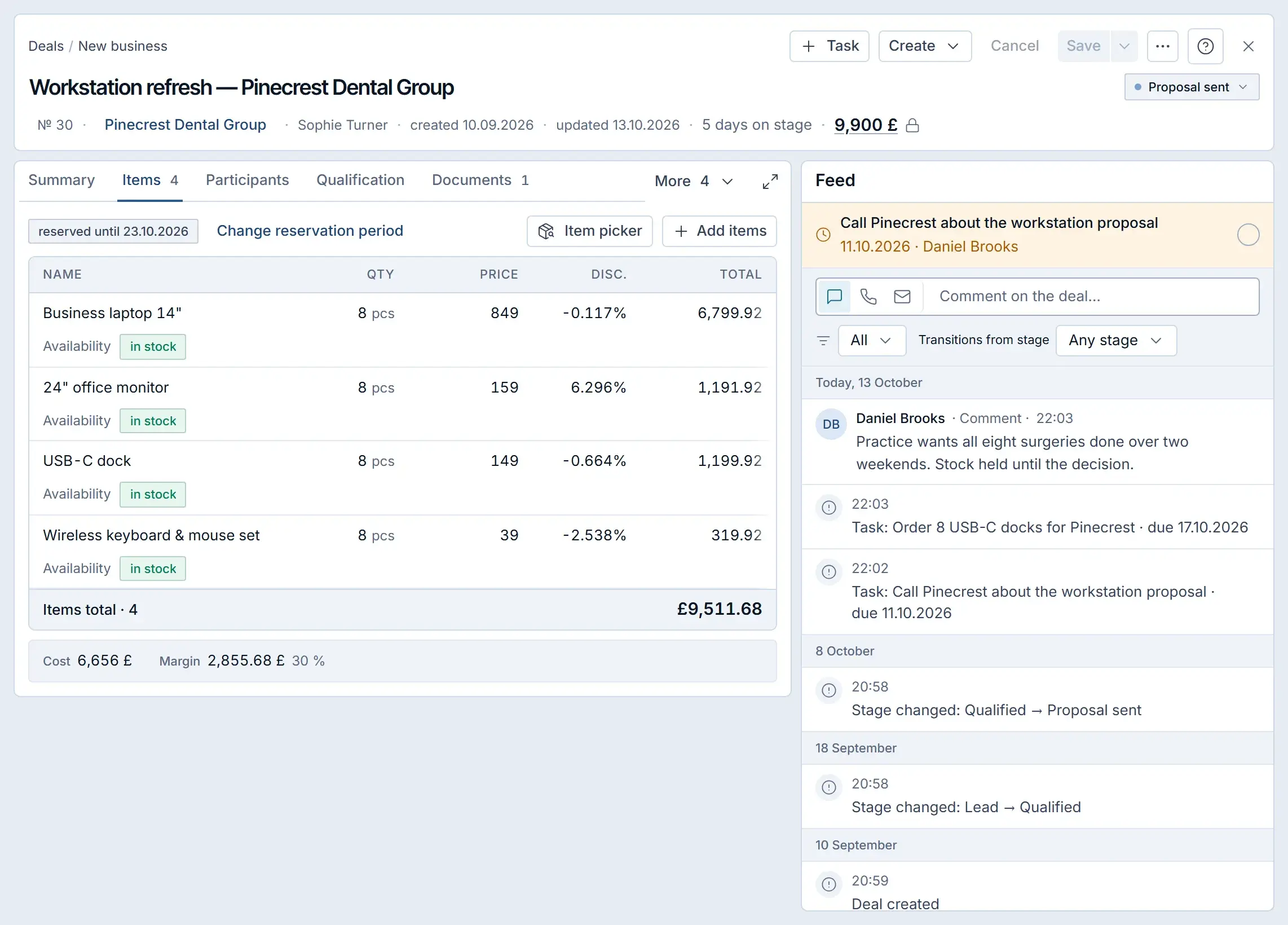
The deal card in a Krokul demo workspace, opened on its Items tab: tabs on the left, the feed of the deal on the right. Filter the board for the deals that need you
Choose the pipeline, search by title and narrow the board by responsible person, team, source, tag, client or last activity. For the questions of a rep switch to the list view of the same deals, where ready-made filters answer them in one click: deals without a next step, contact overdue, contact today, waiting for my approval, stalled and without a responsible person. Several filters work together.
Run this review every morning: open the list, choose yourself as the responsible person, switch on the filter for deals without a next step and fix every row it shows.
Tip. The ready-made filter for stalled deals uses the day limit of each stage, so set the limits in the pipeline settings first.
What one morning on the board looks like#
The table shows how a rep at an IT integrator reads four deals in one pass. The answer on the card decides the action.
| Deal | Stage | Amount | Next step | Action |
|---|---|---|---|---|
| Workstation refresh | Proposal sent | £9,900 | none | Call the client, write the date of the next call on the card |
| Support package | Negotiation | £24,000 | today | Hold the call, then move the next action by a week |
| Network audit | Qualified | £6,500 | contact overdue | Contact today or move the deal to lost with a reason |
| Server migration | Contract | £48,000 | in 2 days | Check the required fields before the move to Won |
Deals on the board add up to the pipeline total, which the weighted pipeline against the commit forecast turns into a revenue forecast.
Which mistakes make the board lie#
- Moving the card at the end of the week. The stage then shows where the deal was, so move it right after the conversation.
- Leaving the next step empty. The deal has no owner of the next action, so write the step at creation and after every contact.
- Dragging to lost with the first reason on the list. The report then shows reasons that nobody chose, so pick the reason the client gave.
- Typing the amount by hand on every deal. The lock then stops the amount following the items, so type it only when the quote is not final.
- Keeping several pipelines on one filter. Choose the pipeline first, because the stages differ.
Daily checklist for the deals board#
- Open the list, choose yourself and switch on the filter for deals without a next step.
- Contact the deals whose contact day has passed.
- Move the cards the conversations have changed.
- Record a lost reason the moment a deal is lost.
- Once a week, switch on the stalled filter and decide for every card.
How other teams use the same board#
A consulting agency keeps one pipeline for proposals and one for retainers, a SaaS vendor adds the partner who brought the deal, and a distributor puts the item picker and the stock on the card. The board and the card work the same way for all of them. To see how stages, rules and the board fit together, read about the deals board and the stages behind it.
Frequently asked questions#
Can I see deals as a table instead of a board?
Yes. The Deals screen has a list view of the same deals with sorting by any column, more filters, compact and detailed views and changes to many deals at once.
What happens when two people edit the same deal?
The second person to save sees who changed which fields. Your edits stay in the card, and you choose between overwriting the saved version and taking the colleague’s version.
Why can I not drag a deal to a stage?
The pipeline rules or the required fields of the stage stop the move. A forbidden column is marked while you hold the card, and a stage with required fields asks for them before the deal moves.