Short answer
For a CRM pipeline setup with required fields per stage in Krokul, open Pipelines in the settings, add a pipeline and create its stages. Give every stage a probability and a day limit, choose the fields a deal must have to enter it, then set the movement rules, the first task and the lost reasons.
- Screen: Pipelines: settings
- Per stage: probability, day limit, required fields
- Role: head of sales
On this page
When a pipeline with stage gates is worth building#
- Deals sit in the same stage for weeks and the card holds a company name and a phone number, nothing else.
- Every rep reads the stage names differently, so the forecast of the quarter depends on who entered the data.
- Implementations and support requests travel through the same board as new sales and nobody can tell them apart.
- New inquiries wait for the first call because nobody owns them in the first hours.
This recipe covers the build. The method behind it, how to choose stages and write their rules, is in the guide to building a B2B sales pipeline that predicts revenue.
How to set up a CRM pipeline with required fields in six steps#
Create the pipeline and name it by the process
Open Pipelines: settings and add a pipeline. The dialog asks for a name only, so name the pipeline after the process it carries, for example New business or Support renewals. A new pipeline starts with four stages: two working stages at 10% and 50%, a won stage at 100% and a lost stage at 0%. Rename and extend them in the next step.
Run one pipeline per process. A company that sells projects and also sells support packages keeps them apart, because their stages and their rules differ.
Add the stages in the order the deal travels
Press Add stage for each step of the process. A stage has a name, a colour and a type: Active, Won or Lost. The order of the list is the order of the columns on the board, and you change it by dragging a stage by its handle. Keep the working stages between four and six. Every extra stage is one more place where a deal can wait unnoticed.
Fill in the public name when the client follows the deal in the client portal. It is the text the client sees instead of your internal stage name.
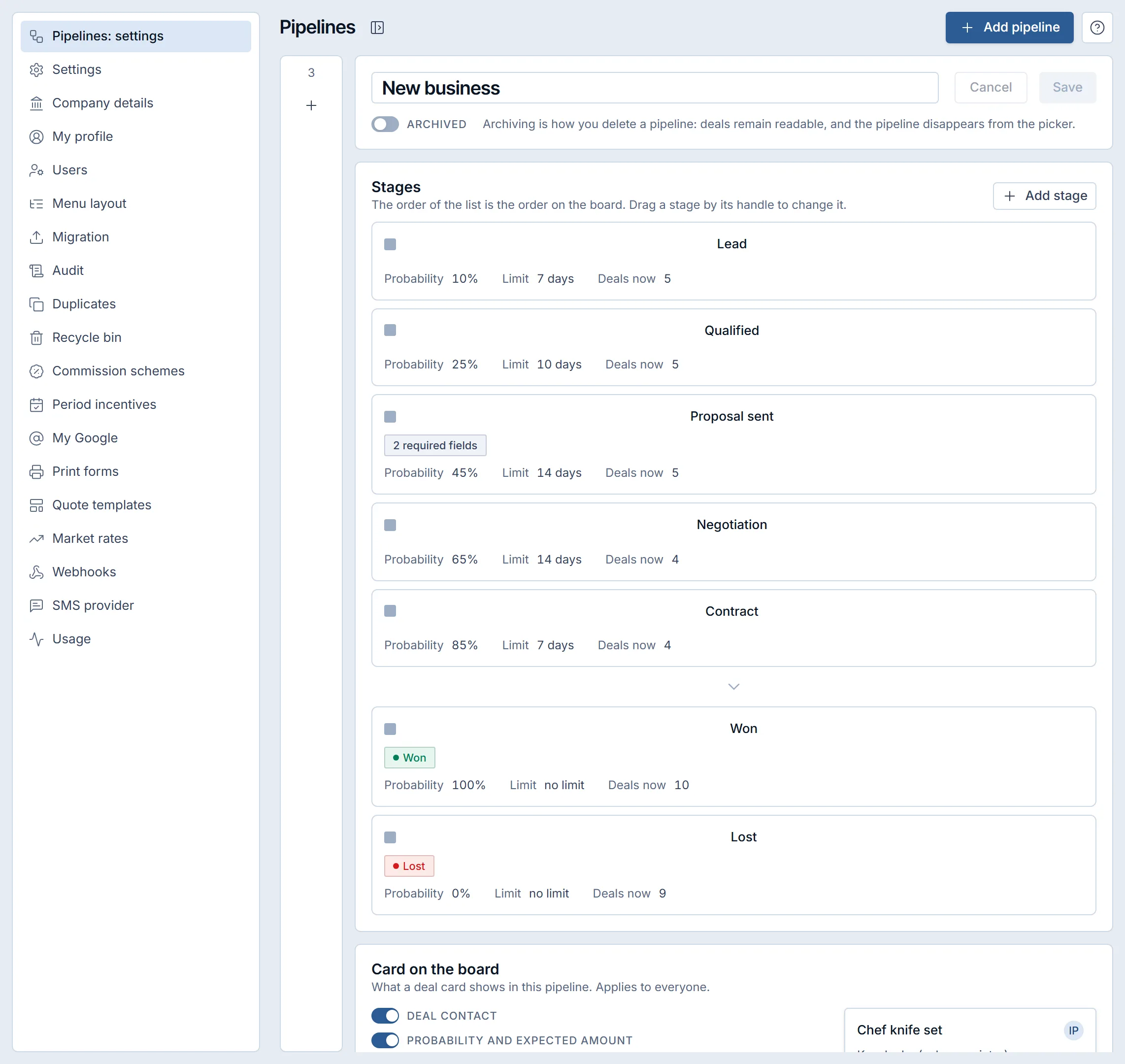
The stage list of a pipeline in a Krokul demo workspace, in the Classic palette: probability, day limit and the number of deals on each stage. Set the probability and the day limit of every stage
Probability is the share of deals that close successfully from this stage. An empty field means that the probability is not set, and zero would mean that you will lose every deal there. Won and Lost have fixed values of 100% and 0%. The weighted forecast multiplies the deal amount by this number, so a stage without it drops out of the forecast.
The day limit says how many days a deal may stand on the stage. A deal that stays longer is marked as stalled, and the responsible person receives a notification. The guide on finding stalled deals and following up shows what to do with the list.
Tip. Start with the numbers the team believes today and correct them after a quarter, when the funnel report shows how many deals really passed each stage.
Choose the required fields for each stage
Open a stage and find Required fields in the Stage discipline block. Choose the fields a deal must have to enter the stage: expected amount, planned closing date, contact, source or your own custom fields. Krokul checks them on the server when a person moves a deal, so dragging the card, the deal form and the API with a user role follow the same rule. The requirements add up: a deal that jumps over a stage must also have the fields of the stage it skipped. When someone drags a card without them, the board names the missing fields and asks for them in place.
For conditions, add a gate rule: when the amount is more than 50,000, require one more field, such as the decision maker. Rules apply when a deal is created and when it moves. The template for choosing criteria is in pipeline stage exit criteria for B2B teams.
Tip. Keep early stages light. Two required fields on Qualified and four on Proposal sent hold more deals than five fields on Inquiry.
Set the movement rules and the rhythm of a new deal
In the pipeline rules block, switch off the permission to skip stages to make the stages go one after another, and switch off the permission to move back to forbid moving a deal backwards. Both are on by default. When a rule forbids a move, the board shows it while the card is still in the hand, before it is dropped.
The pipeline settings also start the rhythm of a new deal. Switch on the first task for a new deal, name it and set when it is due, from one minute to 365 days. The task goes to the responsible person of the deal. For several reps, choose the people in the automatic distribution and the way to share: in turn, or to the one with the fewest open deals. Anyone who has switched off accepting new deals is skipped. Add a target for the first reaction in minutes, and Krokul notifies when nobody has reacted to a new deal in time.
Make the reason a required part of every loss
A deal cannot move to a lost stage without a reason, so fill in the list of lost reasons in the pipeline settings. Give every reason a group, such as Price, Competitor, Not now or Budget, so the report adds similar reasons together. The guide on lost deal reasons explains how to keep the list short.
Finally, press Save in the pipeline form. Nothing you changed reaches the board until it is saved.
What a pipeline for an integrator looks like#
The table shows a pipeline for an IT integrator who sells implementation projects. The numbers are an example to copy and correct.
| Stage | Probability | Day limit | Required fields to enter |
|---|---|---|---|
| Inquiry | 10% | 3 | source, contact |
| Qualified | 25% | 10 | company, expected amount |
| Assessment | 40% | 14 | planned closing date |
| Proposal sent | 60% | 10 | expected amount, decision maker |
| Contract | 80% | 7 | contract terms, planned closing date |
| Won | 100% | no limit | expected amount |
| Lost | 0% | no limit | lost reason |
Expected amount of a deal = amount × probability of its stage. A deal of £20,000 on Proposal sent adds £12,000 to the forecast. A gate rule adds one more required field to deals above £50,000, so large deals reach Contract with a named signatory.
Which mistakes weaken a stage gate#
- Requiring everything on the first stage. Reps then enter placeholder values, so require the fields that the next step needs and nothing more.
- Leaving the probability empty. The stage drops out of the forecast, so give every working stage a number even if it is a first guess.
- Setting one day limit for all stages. A quote can wait ten days and a signature cannot, so set the limit by how long the stage takes in your sales.
- Mixing sales and delivery in one pipeline. A separate pipeline per process keeps the percentages honest.
- Writing the gates and never reading what they stop. Look at the attempts to move without the fields in the funnel report and relax the rules that stop good deals.
Pipeline setup checklist#
- One pipeline per process, named after it.
- Four to six working stages, then Won and Lost.
- A probability and a day limit on every working stage.
- Required fields on every stage after the first, two to four each.
- Gate rules for large deals or special products.
- The first task and the distribution of new deals switched on.
- A list of lost reasons with groups.
- A review after a quarter against the real stage-to-stage conversion.
How to check that the pipeline works#
After a quarter, compare the probabilities with what happened. The stage conversion and cohort analysis shows how many deals from each stage reached Won, and the gate report shows where the rules stopped deals. Change the numbers in the pipeline settings and the forecast follows.
To see how stages, gates and the board work together, read about the sales pipeline with stage gates in Krokul. Daily work with each deal happens on the deal card and kanban board. Inquiries from your site and from Telegram can start the pipeline automatically, as described in the guide to turning website forms and Telegram messages into deals.
Frequently asked questions#
How many pipelines can one company have in Krokul?
A company can keep as many pipelines as it has processes, and each has its own stages, probabilities and gates. Archive a pipeline you no longer use, and its deals stay readable.
Can I delete a stage?
No, a stage is archived. Deals on an archived stage stay readable, and you move them to another stage by hand. The stage panel tells you how many there are.
Does the stage gate apply to deals created through the API or an import?
The gate is checked on the server when a person moves a deal, in the board, the form or the API with a user role. Imports, automations and incoming integrations are not stopped by it.