Short answer
To turn a quote into a contract and invoice without retyping in Krokul, open the quote the client chose, pick Make based on in the document menu and choose Contract or Invoice. The new draft keeps the client, lines, prices and totals of the quote. Review it, issue it, and repeat from the contract for the invoice.
- Starts from: The quote the client chose
- Result: A draft contract or invoice with the same lines
On this page
When a quote needs to become a contract and an invoice#
- The client said yes by email, and the contract is now typed into a separate file from the quote.
- The invoice total differs from the quote by a few pounds, and the client asks which one is right.
- The client picked one of three quote options, and the other two are still open in the deal.
- The price list changed after the quote went out, and nobody knows which price the invoice should carry.
This recipe is the last part of the B2B quoting method. It starts from a finished quote and ends with an issued invoice.
How to turn a quote into a contract and invoice in six steps#
Open the quote the client chose
Open the quote in the deal, on the Documents tab. When the client accepted through the shared link on the quote, Krokul gives the quote manager a task to issue the invoice, so the work can start from that task.
If you sent several options, the quotes are marked as alternatives of one deal. Make the contract or the invoice from the chosen quote. Krokul marks that quote as approved, rejects the others and sets the deal amount to the chosen total, after a confirmation window that lists the other quotes. The guide on sending a quote with several options covers the setup.
Fix the quote before you copy it
The new document copies the quote as it stands, so correct lines, quantities and the discount first. If the price list changed since the quote was written, a strip under the table shows the current price beside the price in the document, and a draft has a button to update the lines to the current price.
Tip. Update prices on the quote while it is still a draft. A quote that was already sent keeps its prices, and a change goes into a new version.
Make the contract from the quote
Open the document menu (⋯), choose Make based on and pick Contract. Krokul creates a draft with the same client, lines, prices and discount. The draft has no number and no date yet, and it points back to the quote it came from.
The validity dates stay empty, because a contract is signed on its own dates. Fill in the terms, then issue the contract with the main button in the header. If your company set an approval route for contracts, submit the draft for approval first, because an unapproved contract cannot be issued.
Tip. The exchange rate of a foreign currency contract is fixed when the draft is created, so create it on the day you want that rate.
Make the invoice from the contract or straight from the quote
Choose Make based on and pick Invoice. From a quote the invoice takes all lines. From a contract, the Invoice from stages item opens a list of stages, and you tick only those you are invoicing now. A stage already invoiced in full cannot be picked again, and Krokul names it in the refusal.
The invoice gets its Pay by date from the payment deferral in the client’s terms, when the client has one. The print form switches to the standard invoice form, because a quote form does not suit an invoice.
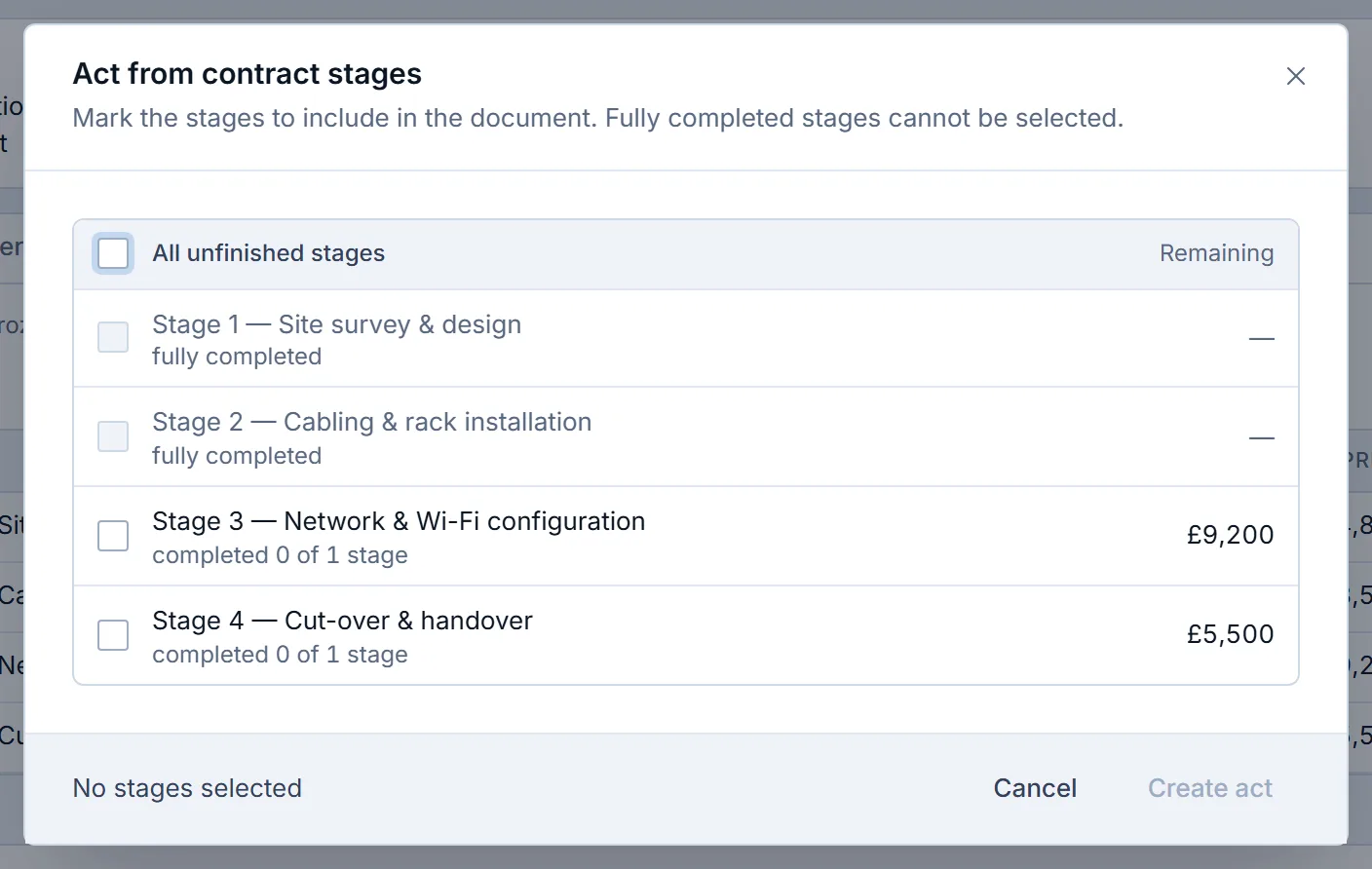
Picking the stages of a contract in a Krokul demo workspace. The act dialog is shown, and the invoice picker lists stages the same way. Check the totals and issue the invoice
Compare the invoice total with the quote or the contract stage. They match, because the system copied the lines. Press the main button in the header to issue the invoice, and its lines freeze.
A document made from the deal card has a ceiling too. The quantity cannot exceed what the deal agreed, and for an invoice it cannot exceed what is left after earlier invoices.
Change an issued document through a new version
When the client asks for a change after the invoice is issued, open the document menu and choose New version. Krokul creates a draft with the same lines and the version number plus one, and moves the previous version to the archive. Payments already linked to the old version move to the new one.
The validity date is not inherited, so enter it again if the document has one.
What one quote looks like across three documents#
The table follows one deal. The quote carries three lines, the contract copies them, and two invoices cover the contract in two parts. The totals of the two invoices add up to the quote.
| Document | Lines | Total |
|---|---|---|
| Quote | Licences £12,000, data migration £4,500, training £2,000 | £18,500 |
| Contract (made from the quote) | The same three lines | £18,500 |
| Invoice 1 (stages: licences, migration) | Licences £12,000, data migration £4,500 | £16,500 |
| Invoice 2 (stage: training) | Training £2,000 | £2,000 |
The check is one sum. Invoice 1 plus Invoice 2 equals the quote, £16,500 + £2,000 = £18,500. If it does not, a line was edited somewhere along the chain, so compare the documents one by one.
What a new document copies from the previous one#
A document made from another document copies the substance and resets what belongs to the new paper. The table lists what you will see in the new draft.
| Part of the document | In the new draft |
|---|---|
| Client, contact and deal | Copied |
| Lines, quantities and prices | Copied, each price as it was in the source |
| Discount | Copied |
| Number and date | Empty until the document is issued |
| Validity dates | Empty, except the Pay by date of an invoice, which comes from the client’s terms |
| Exchange rate | Fixed again when the draft is created |
| Link to the source | Kept as the source of the new document |
| Print form | The standard form of the new document type |
How to create the first document straight from the deal#
You create a document straight from the deal by pressing Create in the deal header and choosing the document type. This is the way to start when there is no quote yet, or when you invoice part of the deal.
The document is a draft with the lines of the deal at their final prices. An approved discount of the deal goes into the document as a percentage, marked as approved. A discount that nobody approved stays in the deal. The documents in Krokul page shows the whole chain from the quote to the completion certificate.
Which mistakes put different totals on one deal#
- Retyping the quote into the invoice. A small slip becomes a dispute, so make the invoice from the quote or the contract.
- Editing an issued invoice in a copy. The copy is a new document, and the payments stay with the original; use New version for corrections.
- Invoicing the whole contract at once when the client pays by stages. Pick the stages for each invoice, and the remaining amount of every stage stays visible.
- Leaving the rejected options open. Make the document from the chosen quote, and the others are rejected in the same step.
- Fixing prices after the invoice was issued. Correct the quote while it is a draft, and use a new version after that.
Checklist before you issue the invoice#
- The quote the client chose is the source, and the other options are rejected.
- Lines, quantities and the discount match what the client agreed.
- The contract is issued, or its stage is picked for this invoice.
- The Pay by date follows the client’s payment terms.
- The invoice total plus earlier invoices equals the agreed total.
- The approval, if your company requires one for this type, is done.
To see what comes after the invoice, read about collecting payment on issued invoices. The guide on turning logged hours into a completion certificate and invoice follows the same chain for work sold by the hour. To see how the quote itself is built from the catalog before this recipe starts, read about building a quote at the client’s prices.
Frequently asked questions#
Can I change an invoice after it is issued?
Yes, through a new version. The new version opens as a draft with the same lines, the previous version goes to the archive, and payments already linked move to the new version.
Does the invoice keep the prices of the quote when the price list changes?
Yes. Each line keeps the price it had in the source document. A strip under a draft shows the current price beside it, and you can update the lines to the current price in the draft.
Can I invoice only part of a contract?
Yes. The Invoice from stages item lets you tick the stages for one invoice. A stage that is already invoiced in full cannot be picked again.
Can the client sign the contract in Krokul?
No, Krokul has no e-signature of its own. You print the contract or send it as a file for signing. The acceptance on the shared quote link records the client’s agreement and is not a signature.