Short answer
To set a monthly sales plan in Krokul, open the Plans screen, choose the month and the view for the company, people or teams, and type a target for each metric. Save it, and the Performance tab shows the actual, the percentage and a pace check that says who is ahead and who is behind.
- Screen: Plans
- Views: company, people, teams
- Plan: Margin
On this page
When a monthly sales plan is worth setting#
- The month ends and nobody can say whether the team did well, because nobody wrote down what well meant.
- Reps count their results from their own deals and the numbers differ from the head of sales.
- The plan lives in a presentation of the quarter and never meets the actual figures.
- A rep falls behind in the second week and the head of sales learns it in the last one.
A plan turns the funnel into a target. It sits next to the forecast in a B2B sales pipeline that predicts revenue, and the same targets can drive the sales commission schemes reps can check themselves.
How to set a monthly sales plan in six steps#
Open Plans and choose the month and the view
Open the Plans screen and stay on the Matrix tab. Choose the month at the top, then choose whether you set the plan for the company, for people or for teams. The matrix lists metrics in groups, among them sales, contacts, deals, documents and activity. Each row has the plan, the actual, the progress and the figure of the previous month next to it.
The actual comes from the same reports as the rest of the product, so there is no second set of numbers to reconcile.
Type the company target for the metrics you manage
Type a target in the plan column of the rows that matter, such as the amount of won deals, the number of won deals, new deals, invoices issued or calls. An empty cell means that there is no plan, which is different from a plan of zero, and the Performance tab follows only the metrics that have a plan. Choose three to five metrics, because every extra row dilutes the attention of the team.
Tip. Use one outcome metric, such as the amount of won deals, and two or three activity metrics that drive it, such as new deals and calls.
Start from last month with the suggestion button
The suggestion button fills the empty cells from the actual of the previous month, and the suggested cells are tinted until you save them. Cells where a target already exists are not touched. Correct the numbers: a month with a holiday or a big renewal does not repeat, so the suggestion is only the first draft of the target.
Split the target between people and teams
Switch the view to people or teams and type a target for each person at the crossing of the metric and the person. The sum of personal targets does not have to equal the company target. Keep the gap on purpose when you plan a reserve for the weakest months. Press the save button, which shows how many targets changed.
Read the Performance tab every week
The Performance tab appears when a target is saved for the period. Each row is a metric and a person or team with the target, the actual, the percentage and the pace. The pace compares the actual with what should be done today if the work were even through the month, which is the target multiplied by the share of the month that has passed.
The status follows the pace. An actual ten percent or more above the expected is ahead, within ten percent is on track and more than ten percent below is behind. When a third of the period has passed and even a doubled current pace does not reach the target, the row is marked hopeless, so the head of sales sees which plans need a decision as well as a push.
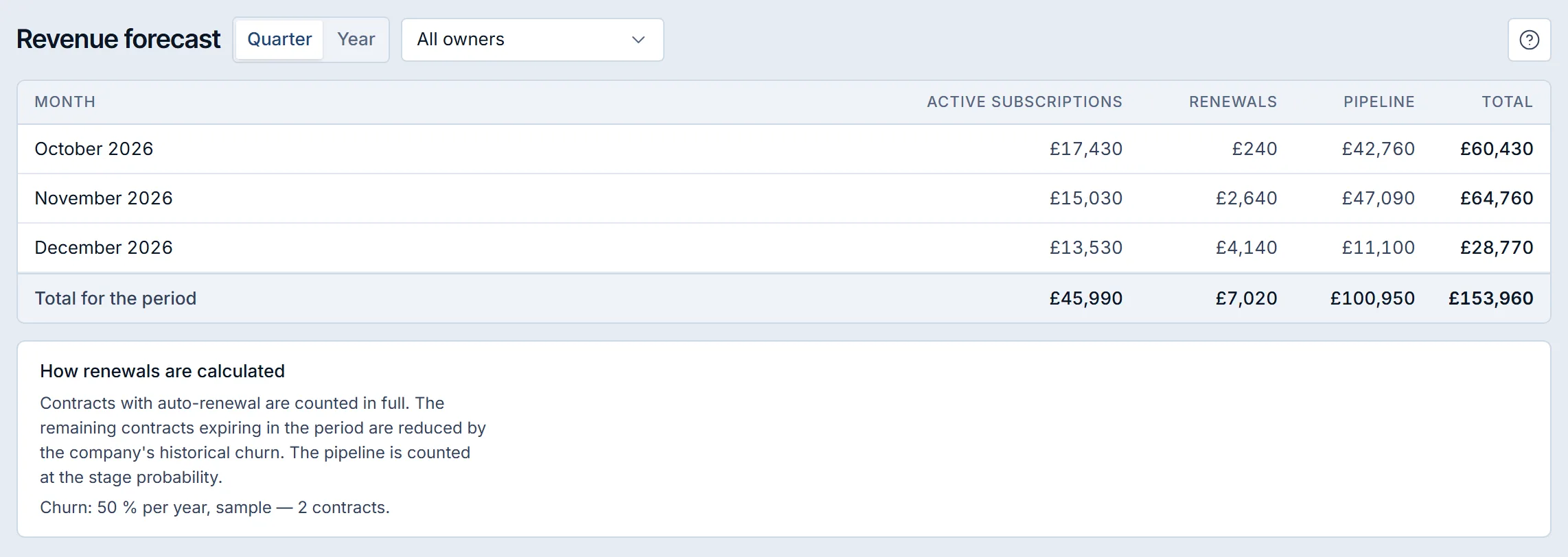
A different screen: the revenue forecast of a Krokul demo workspace, where the pipeline is counted at stage probability. The Plans screen is a separate screen with its own matrix of targets. Compare with the previous period and plan the quarter and the year
On the Performance tab choose the previous period or the same period a year ago, and the table adds the actual of that period on the same date and the percentage against that period. A quarter and a year are separate targets: type them as one number or let Krokul split the year over the months equally, by percentages or by last year’s actuals, which repeats the seasonality. Nothing is saved until you press the save button.
What the pace check shows on day 12#
The table shows three reps with the same monthly target of £60,000 in won deals, on day 12 of a 30-day month. The numbers are an example.
| Rep | Actual on day 12 | Expected on day 12 | Progress | Status |
|---|---|---|---|---|
| Rep A | £30,000 | £24,000 | 50% | ahead |
| Rep B | £22,000 | £24,000 | 37% | on track |
| Rep C | £12,000 | £24,000 | 20% | hopeless |
Expected = target × days passed ÷ days in the month = £60,000 × 12 ÷ 30 = £24,000. Rep A is above £26,400 (ten percent over the expected), Rep B is between £21,600 and £26,400, and Rep C sits below £21,600. At the current pace Rep C ends the month with £30,000, and even a doubled pace gives £48,000, so the target needs a decision, such as moving deals from another rep.
Which mistakes spoil a sales plan#
- Setting the target once and never reading it. The Performance tab is there to be read weekly, so put the review in the calendar.
- Planning twenty metrics. The team follows none of them, so keep to three to five.
- Copying last month without a check. A suggestion repeats the past, so correct it for holidays, renewals and seasons.
- Setting only the company target. Nobody owns it, so give every rep a personal target.
- Reading an empty cell as zero. The cell means that there is no plan, so remove a mistaken target by clearing the cell.
Monthly plan checklist#
- Three to five metrics with one outcome among them.
- A target for the company and for every rep.
- The suggestion from last month corrected for the next month.
- A weekly look at the Performance tab and the pace column.
- A decision about every row marked behind or hopeless.
- At the end of the month, a comparison with the previous period.
Who sees the plans and where the numbers come from#
Administrators and managers see and set the plans of everyone. Other roles see only their own progress, so a rep reads their own target and actual and nobody else’s. When a metric falls behind, the reasons for lost deals often explain why, as in the guide on lost deal reasons that explain why you lose. Progress can also reach the team on a schedule, as emailing scheduled reports explains. To see how plans, forecasts and reports fit together, read about the plan against actual in the Krokul reports.
Frequently asked questions#
Can I set a plan for a quarter or a year instead of a month?
Yes. A quarter and a year are separate targets, and an administrator can start the planning year in any month while no quarterly or yearly targets exist. The year can also be split into twelve monthly targets equally, by percentages or by last year’s actuals.
What does an empty plan cell mean?
It means that there is no plan, which is different from a plan of zero. The Performance tab follows only the metrics that have a plan, and clearing a cell removes the target.
Can a plan follow a product line?
Yes. A product line is a category or a list of products with its own sold quantity and sales amount, and each line has its own target in the matrix.