Short answer
To bring WooCommerce or Shopify orders into Krokul, connect the store card in the Marketplace, copy the address Krokul gives you into the shop webhook settings, add the signing secret and pick a pipeline. Every new order then opens a deal with the buyer as a contact, the order total and the item lines.
- Events: Order created, customer created
- Direction: Store to Krokul
On this page
When store orders belong in the CRM#
- Web orders sit in the store admin, and the sales team learns about them from the warehouse.
- A wholesale buyer orders online and calls the manager later, who has no record of the order.
- You want one deal list with source and responsible manager for web, phone and email orders alike.
Store connectors are one of several ways in. The overview of AI agents and integrations compares them, and the guide on connecting a custom service without code covers systems that have no ready connector. Phone orders from the same buyers arrive through call logging, so web and phone orders end up in one deal list.
How to connect a WooCommerce or Shopify store in five steps#
Connect the store card in the Marketplace
An administrator opens the Marketplace, selects WooCommerce or Shopify, types a token name such as the shop address and presses Connect. Krokul creates a personal address for this shop, and the Copy address button puts it on the clipboard.
Add the webhook in the shop
In WooCommerce open Settings, Advanced, Webhooks, add a webhook for the order created event, paste the Krokul address as the delivery URL and enter a secret of your choice. In Shopify open Settings, Notifications, Webhooks, create a webhook in JSON format with the same address for the order creation event, and copy the signing secret that Shopify shows.
Paste the secret and choose the pipeline
Open the token settings in Krokul and paste the secret into the signing field, which is required. Choose the pipeline, the deal source and the responsible manager for web orders. Krokul checks the signature of every request, so a request without the right secret is refused.
Without a pipeline the buyer is saved as a contact and no deal is opened. The reason shows in the acceptance journal.
Tip. Give web orders their own source, so reports can compare the web channel with the rest.
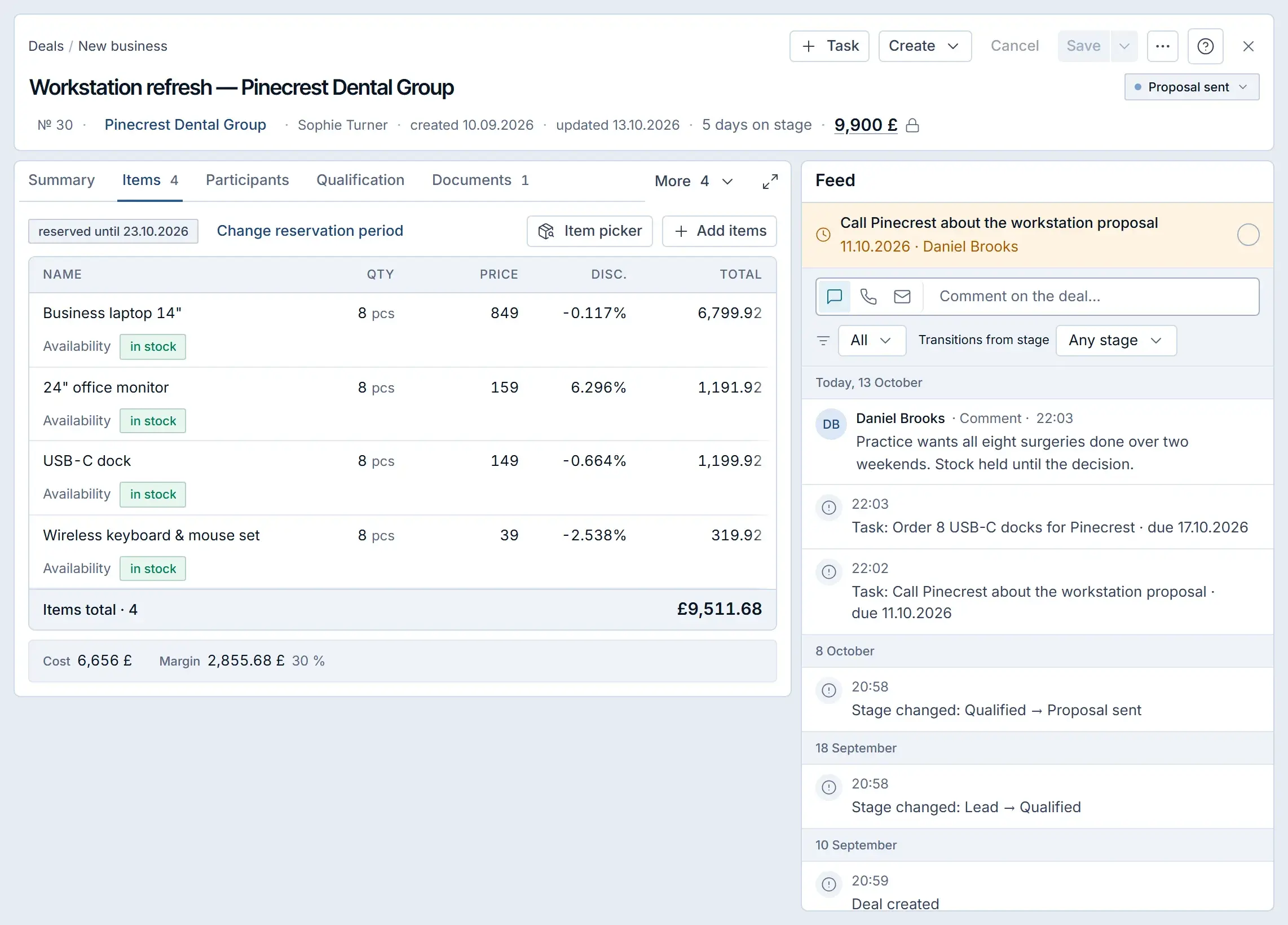
A different screen: a deal with item lines in a Krokul demo workspace, the shape a store order takes. Place a test order
Order one cheap item in the shop. Within moments a deal named after the store and the order number appears in the first stage of the chosen pipeline. It holds the order total, the buyer as a contact with name, phone and email, and one line per item with the name, the quantity and the shop price.
The prices stay as the shop set them, and Krokul does not recalculate them with its own price lists.
Read the acceptance journal
Back on the store card, the acceptance journal lists each request with the result, for example that a contact and a deal were created, or the reason a request was refused. The shop order number is remembered, so a webhook delivered twice opens one deal.
What arrives in Krokul and what stays in the shop#
| Shop event | Result in Krokul |
|---|---|
| Order created | A deal with the order total and item lines; the buyer as a contact |
| Customer created | A contact only, with no deal |
| Checkout created (Shopify) | A deal named abandoned basket, with the items |
| Order paid, shipped or cancelled | The deal does not change, because the connector keeps the first version of the order |
The flow runs from the shop to Krokul. Stock and price changes in Krokul do not travel back to the shop, so the shop stays the master of its catalog. WooCommerce and Shopify send item names, quantities and prices without an article number, so these lines stay unlinked to catalog products with variants and bundles. To build a deal from a customer list of article numbers instead, follow the guide on building an order from a SKU list. The page for B2B goods sellers shows where web orders sit next to the rest of the sales flow.
Does Krokul connect Horoshop and OpenCart too#
Krokul has connectors for Horoshop and OpenCart. Horoshop works through a webhook or, when your plan has no webhooks, through polling the shop API with a login and password; the first poll only remembers the latest order number and imports nothing. OpenCart has no webhooks, so the store sends the order through an installable extension or a code snippet signed with a shared secret.
Which mistakes stop store orders from arriving#
- Leaving the pipeline empty. The buyer arrives as a contact and no deal is opened, so choose a pipeline in the token settings.
- Typing a different secret in the shop and in Krokul. Krokul refuses a request with a wrong signature, so copy the secret once and paste it in both places.
- Expecting status updates. A paid or shipped order does not change the deal, so move the stage in Krokul.
Checklist before you go live#
- The store card shows Configured in the Marketplace.
- The shop webhook points to the Krokul address and carries the same secret.
- The pipeline, source and responsible manager are set.
- A test order created one deal with the right total and lines.
For the connector details of each store, see the WooCommerce integration page. When an order ships, the paperwork starts from the deal, as creating a shipping waybill from a deal shows.
Frequently asked questions#
Does Krokul copy WooCommerce stock and prices?
No. The connector reads store events and writes nothing back to the shop, so stock and prices stay in the shop.
What happens if a webhook arrives twice?
Krokul remembers the shop order number and opens one deal for it.
Does the deal show the items the buyer ordered?
Yes. Each item becomes a line with name, quantity and the price the shop charged.