Short answer
Automate with a CRM API in this order: a read-only key that exports deals or payments to a spreadsheet or BI tool, then writes that create records from your own forms, then payments from accounting. Give each key only the scopes and role its job needs, make every write safe to repeat and watch the key’s call log.
- Start with: a read-only key
- Each key has: scopes, a role, an expiry
- Writes must be: safe to repeat
On this page
When to use API keys instead of an integration#
A key and the API fit when no ready integration covers the job or when your own product has to talk to the CRM. The guide on connecting AI agents and other tools to a CRM safely compares the channels, and this guide goes deep on the direct one.
- A BI tool or a spreadsheet must show deals and payments without a manual export.
- Your product or your site form must create a client or an inquiry in the CRM.
- Accounting must tell the CRM that an invoice was paid.
- A developer or an integration partner builds a connection for a client.
- API key
- An API key is a secret that lets an outside system call the CRM under its own name, with limited rights.
- Scope
- A scope is a named group of routes that a key may call, such as cards.read for reading deals or contacts.write for creating contacts.
- Idempotency key
- An idempotency key is a distinct value sent with a write, so that a retry returns the first answer instead of writing the record twice.
What to automate first with a CRM API in six steps#
The safest order is read first, then create, then update, and each key gets the smallest rights for its job. The steps below follow an integrator that wants its deals in a BI tool and, later, inquiries from its own site in the CRM.
List the jobs and rank them by risk
Write each job as one line with a direction: read from the CRM, create in the CRM or change in the CRM. Reading cannot damage data, creating can add duplicates and changing can overwrite what a person typed.
Start with the lowest risk that still saves real time, which is usually a read-only export.
Read the documentation of the routes you need
The documentation page of the API is generated from the code, and the examples in it were recorded from a live run, so a route and its fields match the product. Every route is a POST request to an address of the form object slash action, with a bearer key in the header and a JSON body.
Errors carry a stable code, so handle them by code. Messages come in Ukrainian by default, and an Accept-Language header with the value en returns English.
Create a key with the smallest scopes and the lowest role
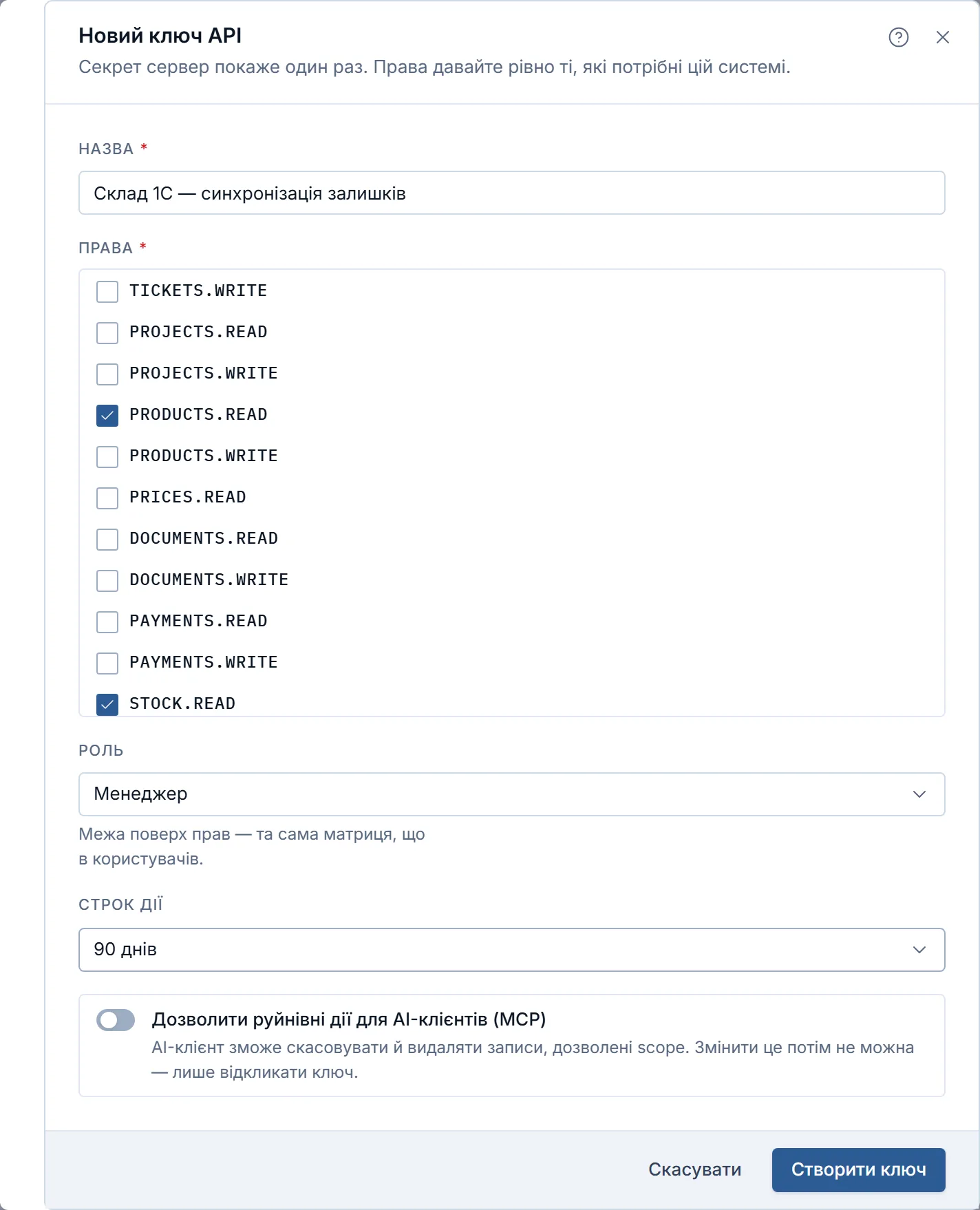
Open the block of API keys under the catalog of the Marketplace, press Create key, name it after the job, tick only the scopes the job needs, then choose the role and an expiry. For a BI export tick the read scopes of deals and companies, and nothing that ends in write.
The role is a limit on top of the scopes and follows the same matrix as people. A key can take the administrator, manager or read-only role, the manager role is the default, and a read-only key cannot write.
Copy the secret once and test with a probe
The secret is shown a single time and stored as a hash, so put it in your secret store at once. A lost secret means a new key.
Use the Probe button on the key to send one real request. It is not a sandbox, so a route with the right to write creates a real record in your company.
Make every write safe to repeat
Send an Idempotency-Key header with each write. A retry with the same key and body returns the first answer, marked as a replay, and creates no second record. The same key with another body is refused with a conflict.
For an update, pass the updated time you last read, and the CRM answers with a conflict if the record changed in between.
Watch the call log and handle the limit
Open the log of the key to see its calls. A key that calls too often gets a 429 answer with a Retry-After header, so wait that many seconds before the next call.
Set an expiry for keys that serve a project, and revoke a key the moment its job ends. Revoked keys are hidden from the list by default and can be shown with a switch.
Which job needs which scopes#
A table of jobs, scopes and risk makes the order of work visible to everyone. The rows below are an example for an integrator, so replace them with your own jobs.
| Job | Scopes | Risk |
|---|---|---|
| Export deals and companies to a BI tool | cards.read, companies.read | Reading only |
| Create contacts and inquiries from your site | contacts.write, cards.write | Duplicates unless the write is safe to repeat |
| Record payments from accounting | payments.write | Wrong amounts reach the debt list |
| Subscribe to events instead of polling | webhooks.read, webhooks.write | A receiver that is down |
Which API key mistakes to avoid#
- Giving a key every scope for convenience lets a leaked secret do everything, so grant only what the job needs.
- Testing a write route on the live company creates real records, so test reads first and clean up after any write.
- Retrying a write without an idempotency key creates duplicates, so send the header on every write.
- Polling a list every minute wastes calls, so subscribe to events with webhooks and read the full record only when one arrives.
- Keeping keys of finished projects active leaves open doors, so set an expiry and revoke the key when the job ends.
A checklist before a key goes live#
- The job is written with a direction: read, create or change.
- The key has the fewest scopes and the lowest role that work.
- The secret is in a secret store and nowhere else.
- Every write sends an idempotency key.
- The key has an expiry and an owner who reads its log.
How the public API and keys work in Krokul#
Every route is a POST request with a JSON body, the HTTP status is the real one, and a success answers with success true and the data while a failure answers with a list of errors that each carry a code. Lists accept an offset and a count, and without them a list returns up to 1000 rows. Creating with a key follows the rules above, with scopes for deals, contacts, companies, tasks, activities, documents, payments, products, stock, prices, projects, tickets, reports, webhooks and files.
Each key carries a role that works as a limit on top of its scopes, and an expiry of none, 30 days, 90 days or a year. The dialog has a separate switch that lets AI clients cancel and delete records, and it cannot be changed afterwards, only by revoking the key. Every key can ask who it is, so a connector can test the connection. Automation rules are not open to keys, so build those in the screen of automation rules.
The documentation lives on a page of the API and is generated from the code, with examples recorded from a live run. Webhook subscriptions are managed with the route webhook/api-upsert and the scopes webhooks.read and webhooks.write. The Krokul page on the public API, webhooks and MCP summarises the rest, and the guide on CRM automation examples covers what to do inside the CRM without code.
Frequently asked questions#
What should I automate first with a CRM API?
A read-only export of deals, companies or payments into a spreadsheet or a BI tool. It saves manual work and cannot change CRM data, so it is the safest first job.
How do I limit what an API key can do in Krokul?
Choose the scopes when you create the key and a role that works as a limit on top of them. A key can take the administrator, manager or read-only role, and a read-only key cannot write.
Can I see the secret of a key again?
No. Krokul shows the secret once and stores it as a hash, so a lost secret means a new key.
Is the probe button a sandbox?
No. The probe sends one real request, and a route that writes creates a real record in your company.
What happens when my integration calls too often?
The API answers 429 with a Retry-After header. Wait the number of seconds in the header and send the call again.