Short answer
To build an automation rule in a CRM, pick one routine job, choose the event that starts it, narrow the event with conditions, add the actions in order, set working hours if people are the audience and read the log after the first runs. In Krokul a rule holds one event, optional conditions and up to 10 actions.
- A rule has: an event, conditions, actions
- Actions per rule: up to 10
- Who builds rules: administrators and managers
On this page
When to build an automation rule#
A rule is worth building when the same step depends on someone remembering it. The guide on connecting AI agents and other tools to a CRM safely places rules next to the API and webhooks, and a rule is the channel that needs no code at all.
- A deal has not moved for a week and nobody has called the client.
- A payment is overdue and the responsible person learns about it from the client.
- A deal moves to the stage for approval and the manager has to hear about it at once.
- A contact has a birthday and the greeting is always late.
- A won deal needs a message to the client after a few days.
- Automation rule
- An automation rule is an instruction of the form when an event happens, under these conditions, do these actions.
- Event
- An event is the moment that starts a rule, such as a new deal, a stage change, a date or an overdue payment.
- Condition
- A condition is a filter on the event, such as one pipeline or one stage, so that the rule runs only where it should.
- Action
- An action is the step the rule performs, such as a task, a stage change, a notification or a message to a client.
How to build an automation rule in six steps#
A reliable rule takes six steps: pick one job, choose the event, narrow it, add the actions, set the working hours and read the log. The example below follows a service company that wants a task on every deal that has stood still for a week.
Pick one routine job and name it
Write the job as one sentence with an event and a result, for example a task for the owner of a deal that has not moved for seven days. A rule with one job is easy to read in the list a year later.
Give the rule a name that repeats the job, because the list shows names and the lines under them.
Start from an example or from a blank rule
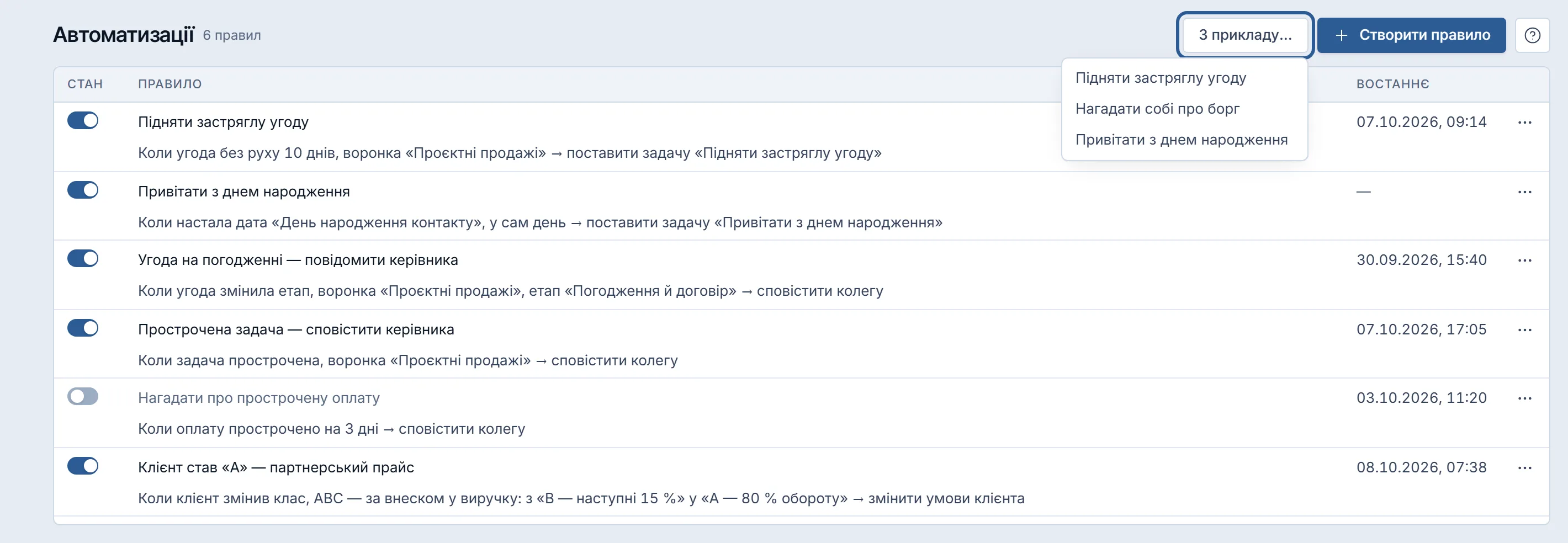
Open the Automations screen and choose a rule from an example, or create a blank rule. Krokul offers three examples: lift a stalled deal, remind yourself about a debt and greet a contact on a birthday. The stalled-deal example waits for seven days without movement and creates a task to contact the client.
Finish the form and save, and change only what differs from your process.
Choose the event and narrow it with conditions
The When block holds the event. For a stalled deal choose Deal without movement and enter the number of days without movement. Krokul checks this event every 15 minutes, and a deal that already triggered the rule triggers it again only after new activity followed by a new silence.
The Conditions block narrows the rule to a pipeline, a stage, a source or a responsible person. An empty condition means any, so the rule applies to every deal until you narrow it.
Add the actions in the order they should happen
A rule can hold up to 10 actions, and they run from top to bottom. For the stalled deal add one action, Set a task, with the text, the deadline in minutes from the moment the rule fires and the person who gets it. The default deadline is 60 minutes.
Add a second action, such as notifying a colleague, only when the task alone is not enough. Commands of each action move it up or down, and one command removes it.
Decide whether the rule works only in working hours
Switch on Only in working hours and set the days and the times when the rule is allowed to act. Hours follow the time zone of the company.
A one-time event outside the window is skipped and not repeated in the morning, so use the limit for rules that scan, such as the stalled deal, and leave it off for rules on single events such as a stage change.
Save, then read the journal of runs
Save the rule and open it after a day. The list shows when it last fired, and the journal inside the rule lists the recent runs with the record, the time and a status: done, partly, failed, cut, in progress or refused. The journal keeps 90 days.
If the rule fired too often or too rarely, change the days or the conditions. To pause a rule, use the switch in the State column, which keeps all the settings.
How to plan a rule before you build it#
A short plan on paper keeps rules few and clear. The rows below are an example for a service company, so replace them with your own jobs. Rules for overdue payments are covered in the guide on sending overdue payment reminders automatically.
| Job | Event and condition | Action |
|---|---|---|
| Lift a stalled deal | Deal without movement for 7 days, one pipeline | Set a task to contact the client |
| Warn about a late payment | Payment overdue by 3 days | Notify the responsible person |
| Greet a contact | Date reached: contact birthday, on the day | Set a task to send a greeting |
Which rule mistakes to avoid#
- Leaving conditions empty makes the rule fire on every deal, so narrow it to a pipeline or stage first.
- Stacking many actions in one rule hides what failed, so keep one job per rule and read the journal.
- Setting a threshold of one day creates tasks faster than people can clear them, so start with a week and tighten later.
- Using working hours on a single-event rule loses events that happen at night, so use the limit only on scanning rules.
- Writing a task nobody owns lets it sit, so choose the person who gets it.
A checklist before you switch a rule on#
- The rule has one job and a name that says it.
- The event and the number of days match your process.
- The conditions limit the rule to the pipeline or stage it is meant for.
- Every action has an owner, and a task has a deadline.
- Someone will open the journal after the first day.
What an automation rule can do in Krokul#
Administrators and managers see, create and change the rules in the Automations screen, and agents and read-only users do not have the screen. The screen lists each rule with its state switch, a readable line and the time it last fired. A rule that is switched off keeps its settings.
The events include those of deals, tasks, payments and clients. For deals they are a created deal, a stage change, a deal without movement, a changed field and an unanswered call attempt. Other events are an overdue task, a reached date such as a close date or a birthday, a received payment, an overdue payment, a client who has not bought for a long time and a client who changed class. The conditions narrow the rule by pipeline, stage, source or responsible person.
The actions include a task, a change of the responsible person, a stage change, tags, closing a deal as lost with a reason, a notification to a colleague, a message or an SMS to the client from a template, a change of client terms and a call to your own address. Each rule can hold up to 10 actions. The rules that send to a client need a template and a connected channel. The Krokul page on automations in a CRM lists the rest, and the article with CRM automation examples shows ready rules for common jobs.
Rules run inside Krokul on the events of your own company. When an AI agent or another system has to reach the same data from outside, the guide on what MCP is and what it changes for CRM data explains that channel.
Frequently asked questions#
What is an automation rule in a CRM?
An automation rule is an instruction of the form when an event happens, under these conditions, do these actions. In Krokul the rule can set a task, change a stage, notify a colleague or send a message.
How many actions can one rule have?
Up to 10 in Krokul. They run from top to bottom, and you can reorder them with the move up and move down commands of each action.
Why did my rule not fire?
Check the state switch, the working hours and the conditions, then open the journal of the rule. For a message to a client you also need a connected channel and an address or phone number in the contact.
How often does Krokul check a stalled deal?
Every 15 minutes. A deal that already triggered the rule triggers it again only after new activity followed by a new silence for the same number of days.
Can I pause a rule without losing it?
Yes. The switch in the State column stops the rule and keeps all its settings, so you can switch it on again later.