Short answer
To connect Claude to a CRM with MCP, add the CRM's MCP server address to Claude as a custom connector, sign in to the CRM, choose the company and approve only the permissions Claude needs. Claude then works with your role and permissions. Test with a read question, and revoke access in your profile when the job ends.
- Server address: https://app.krokul.com/mcp
- Sign-in: your own Krokul account
- Destructive tools: never offered
On this page
When to connect Claude to your CRM#
Connecting Claude to a CRM with MCP lets the assistant read and change CRM records from a chat, inside limits you set. It is one case of the wider job in the guide on connecting AI agents to a CRM safely.
- Every Monday you ask the same question about overdue invoices and want Claude to fetch the list.
- After a call you want the agreed next step saved as a task on the right deal, without opening the CRM.
- You want a summary of conversion and of the days deals spend in each pipeline stage, from numbers the CRM calculated.
- A developer wants to try an agent against real routes with a connection that has limited permissions.
- MCP
- MCP is the Model Context Protocol, a protocol that lets an AI client such as Claude call tools offered by another system. The guide on what MCP changes for CRM data covers the protocol itself.
- Connection
- A connection in Krokul is the grant that a person gives an AI client: one company, a set of permissions and the role of that person. It lasts while it is used, because each renewal gives another 30 days, and it ends when it is revoked, when it sits unused for 30 days or when the person loses access to the company.
How to connect Claude to Krokul in six steps#
Connecting Claude to Krokul takes six steps, and the sign-in in step 3 is the only moment when a person grants permissions. The Krokul page for the API, webhooks and MCP lists what the server offers.
Check that your account can connect
You need a Krokul account with an internal role in your own company, such as administrator or manager. Demo workspaces and partner cabinets cannot be connected, and Krokul says so when no company qualifies. On the Claude side you need an app that supports custom connectors: Claude on the web, Claude Desktop or Claude Code.
If your company requires two-factor sign-in, sign in with your code first. A session without the code does not see that company in the list.
Add the Krokul address as a custom connector
In Claude, open the connector settings, add a custom connector and enter https://app.krokul.com/mcp. Press Connect, and Krokul opens its sign-in page in the browser.
In Claude Code, run claude mcp add --transport http krokul https://app.krokul.com/mcp. Then run /mcp inside Claude Code, choose krokul and start the authentication.
Tip. Opening the address in an ordinary browser tab shows a short page with these same instructions, because the address itself is made for AI clients.
Sign in and read the consent screen
Sign in with your Krokul account. The consent screen names the app that asks for access, marks the name as not verified when the app chose it itself, and shows the address where the approval will be sent. Allow the request only when you started the connection a moment ago.
Choose the company and tick the permissions. They come in two groups, one for reading and one for creating and changing records. Clear the second group for a first trial, and Claude will only read. At least one permission must stay ticked. Press Allow, and the browser returns to Claude.
Ask a read question first
Start a chat with the Krokul connector enabled and ask which client companies have overdue invoices. Claude calls the tool client_company_read_debtors and answers from the list that Krokul returns.
Compare the clients in the answer with the Debtors screen in Krokul. Both read the same route, so a difference points to the role or the permissions of your account.
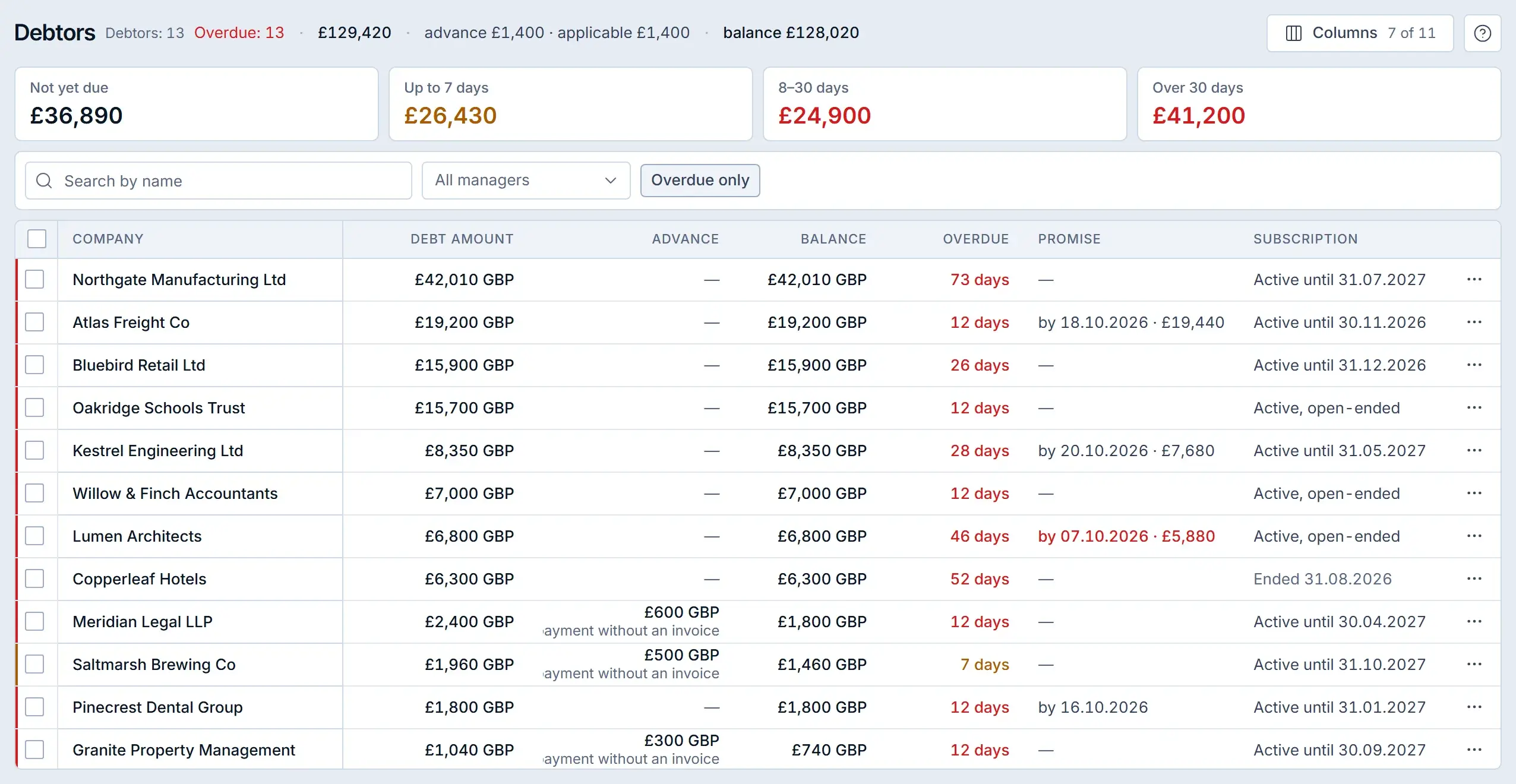
Compare the answer with the Debtors screen in a Krokul demo workspace; Claude reads the same list through the tool client_company_read_debtors. Preview a change before Claude makes it
Ask Claude to create a task or move a deal stage, and to call the tool with dryRun set to true first. Krokul answers with the route and the exact body it would send, and writes nothing.
Read the preview, then let Claude repeat the call without dryRun. The route checks the body on that real call, so an error message can still come back, and Claude reads it and corrects the call. A write tool also takes an idempotency key, and a repeated call with the same key and body returns the first result instead of writing twice.
Review the connection and revoke it when the work is done
Open My profile in Krokul and find the Connected apps block. Each row shows the app, the date it connected and the date it was last used. Revoke ends the access at once, and Claude has to ask you to sign in again.
An administrator sees the connections of every person in the company in the Marketplace, under the API keys, and can revoke any of them.
What can Claude do through the connection#
Claude can call every Krokul tool that your approved permissions and your role allow, and no destructive tool. The tool list is built from the public API specification, so each tool is an API route, and each call goes through the same gateway as the API: the permission check, the rate limit and the call log. A name such as card_read_list comes from the route card/api-readList.
| Kind of tool | Examples | Offered to Claude |
|---|---|---|
| Read | card_read_list, contact_find, client_company_read_debtors, report_dso | Yes, for the read permissions you approved |
| Write | task_create, activity_create, card_update_status | Yes, when you approve the permissions that change records; dryRun and an idempotency key are available |
| Destructive | tools that remove, delete, cancel, merge, archive or refund | Never; a person does these in the Krokul interface |
| Outside every permission | meeting transcripts, API key management | Never offered |
Lists take an offset and a count, and a count of 50 or fewer keeps Claude's context small. A result longer than 100,000 characters is cut, and the cut comes with a notice that tells Claude to narrow the request.
Which connection fits, a personal sign-in or a company API key#
A personal sign-in suits Claude used by one person, and a company API key suits an agent that runs with nobody at the screen. Both open the same MCP address, and the Claude page in the Krokul integrations describes the sign-in route.
| Aspect | Personal connection | Company API key |
|---|---|---|
| Who starts it | The person who signs in from Claude | An administrator, in the Marketplace |
| Role | The live role of that person on every call | The role chosen for the key; manager by default |
| Destructive tools | Never offered | An administrator decides with a switch when creating the key, and it cannot be changed later |
| How it ends | Revoked in My profile, or the person leaves the company | Revoked in the Marketplace, or expires after none, 30 days, 90 days or a year |
| How it signs in | OAuth in the client | The header Authorization: Bearer krokul_… on the same address |
The secret of a key is shown once, so copy it when you create the key. The guide on safe AI access to CRM data explains how to choose permissions and a role for each kind of agent.
Which mistakes to avoid when connecting Claude to a CRM#
- Ticking every permission on the consent screen gives Claude write access that it may never use, so keep the permissions that change records cleared until a task needs them.
- A connection that you did not start can look harmless. The consent screen marks a self-declared app name as not verified, so allow only a request that you began.
- A connection left after a one-off job keeps renewing for as long as Claude uses it, so revoke it in My profile when the job ends.
- Retrying a failed write unchanged repeats the failure. The error comes back with the server message, and Claude should read it and correct the call.
- A missing tool usually means that the role cannot use its route. A tool appears only when both the approved permission and the role allow it, so ask an administrator when you need it.
A checklist before you connect Claude to a company#
- You know which Krokul company Claude should work in and that your role in it fits the task.
- The consent screen shows the app and the return address that you expect.
- Only the permissions needed for the first task are ticked.
- A read question returns the same clients as the Debtors screen.
- Every write starts with a dryRun preview.
- You know when the job ends and the connection will be revoked.
Frequently asked questions#
Does Claude see everything in my Krokul company?
No. Claude works with your role in the company and the permissions you ticked on the consent screen, and Krokul checks both on every call. When an administrator lowers your role or removes you from the company, the connection narrows or stops with the next call.
Can Claude delete or merge records in Krokul?
No. Tools that remove, delete, cancel, merge, archive or refund are not offered to a personal connection. Tools that create and change records are offered when you approve the permissions that change records.
How long does the connection last?
It lasts while Claude keeps using it. Claude holds an access token for one hour and renews it with a refresh token valid for 30 days, and each renewal issues a new refresh token with another 30 days. A connection unused for 30 days expires, and you sign in again. Revoking it or losing access to the company ends it at once.
What if the consent screen says the request has expired?
Start the connection in Claude again. A consent request is valid for 15 minutes and works once.
Can one connection reach several companies?
No. Each connection belongs to one company, which you choose on the consent screen.